![Untitled design (1)-Aug-01-2022-12-37-27-80-PM.png]](https://help.syscloud.com/hs-fs/hubfs/Untitled%20design%20(1)-Aug-01-2022-12-37-27-80-PM.png?height=40&name=Untitled%20design%20(1)-Aug-01-2022-12-37-27-80-PM.png)
SysCloud supports the following restore types for Box backup archives:
- Full user account restores – Restore all backed-up Box data for a selected user.
- Cross-user account restores – Restore all backed-up box data for a selected user to the account of another user
- Folders restore – Restore a selected Box folder from a user’s archive to the same or an alternate user’s account.
- Individual file restores – Restore one or more selected Box files from a user’s archive to the same or an alternate user’s account.
During restore, you can select the backup snapshot date, choose the target Box user account, restore data to a new folder, and optionally restore Box collaborations and comments.
Steps:
- Log in to the SysCloud backup application.
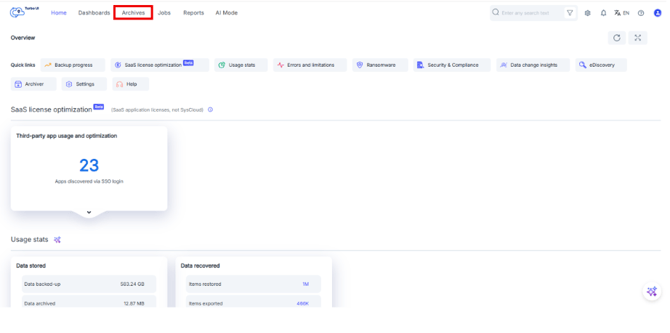
- From the top navigation menu, click Archives.
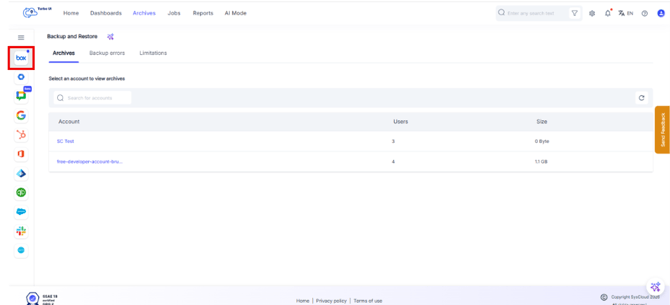
- From the left-side cloud navigation bar, select Box.
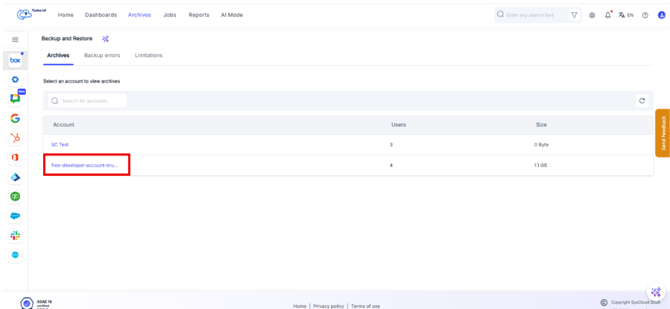
- Select the required Box account.
Restore a full Box user account:
Use this option to restore all backed-up Box data for a specific user. After performing the steps 1 to 4 in the top section, continue from here.
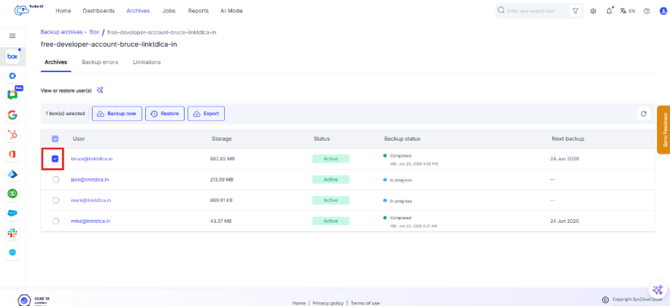
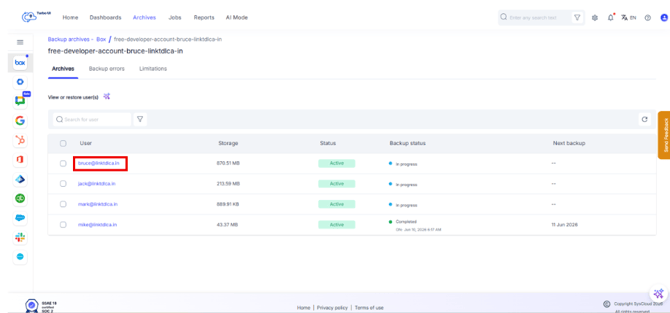
- In the Box archive view, select the checkbox next to the user whose Box data you want to restore.
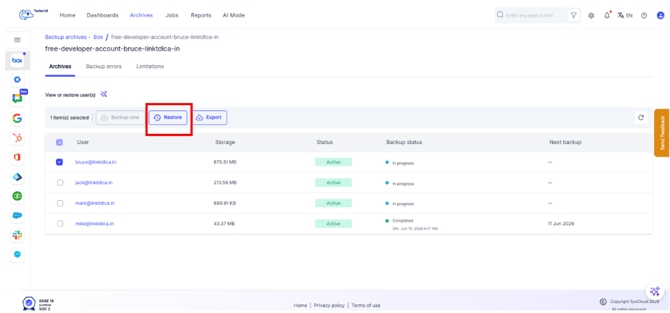
- Click Restore.
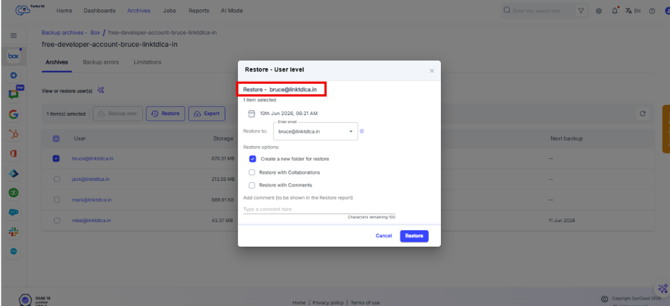
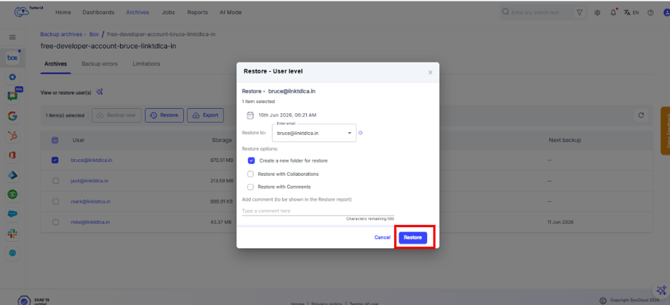
- In the Restore - User level window, verify the selected user.
- Verify the snapshot date and time. This determines the backup version from which the user’s Box data will be restored. By default, the latest timestamp is selected.
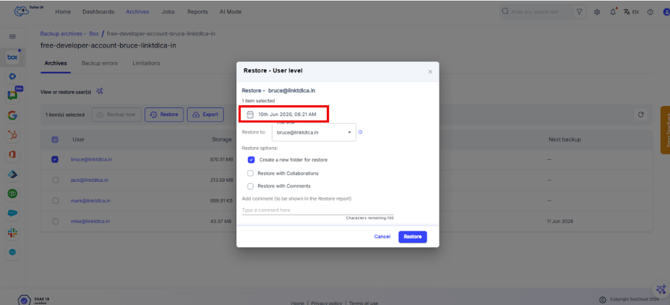
For a Point in time, Click the snapshot date. Select the specific date for both From & To dates. Then click Apply.
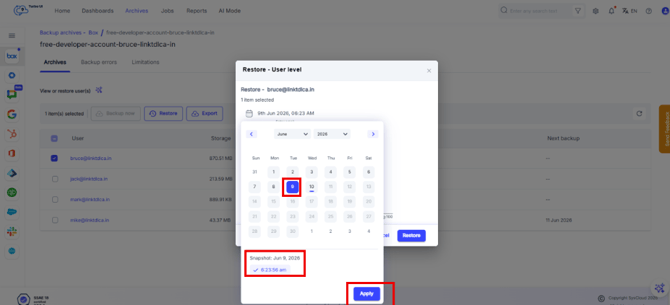
Please note that if you select a range of dates, the latest file across all file versions that fall within your selected timeframe, will be displayed. - In the Restore to field, select the Box user account where the data should be restored.
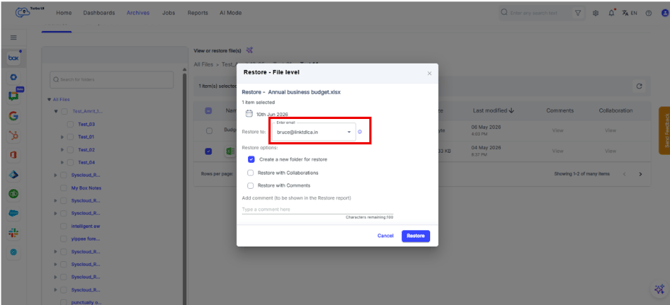
By default, SysCloud may show the original user account. You can change this to another available Box user account if required for cross-user restoration.
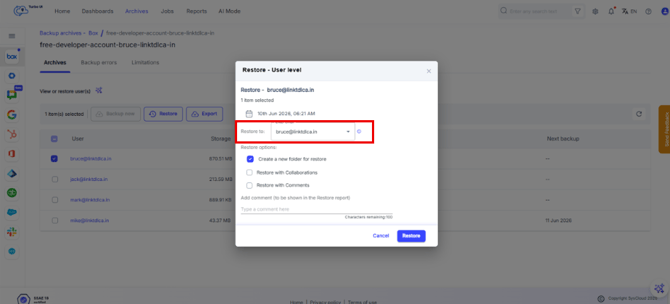
- Under Restore options, select the required options:
Restore option Use this when Create a new folder for restore This will restore the files to a new folder named Syscloud_Restore_TIMESTAMP. This helps avoid mixing restored data with existing Box data Restore with Collaborations This will restore the files with all the shared permissions and access Restore with Comments This will restore the files, and the associated box comments 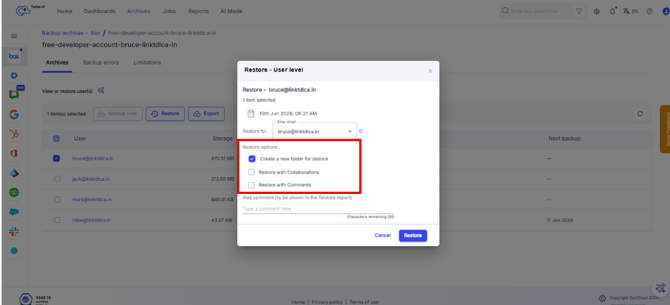
- Optional: Add a comment in the Add comment field. This comment will be shown in the restore report.
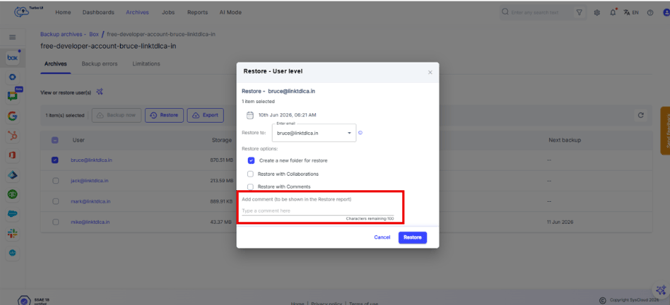
- Click Restore.
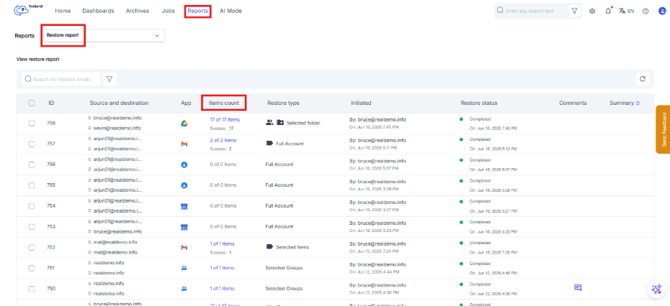
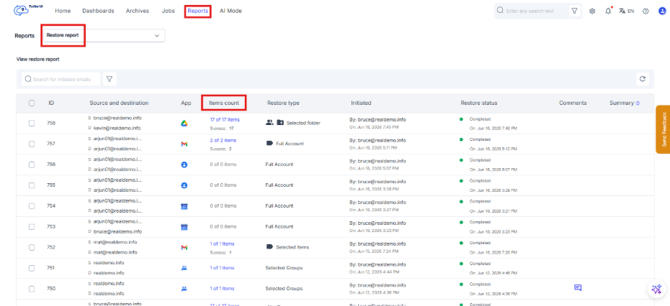
- The Restore progress can be viewed in Reports > Restore Reports. In case of error or failure, you can click on the count under the Items count column to check Errors and Limitations.
Restore a Box folder:
Use this option to restore a specific folder from a user’s Box archive. After performing the steps 1 to 4 in the top section, continue from here.
- In the Box archive view, open the user’s archive by clicking to view the backed-up Box files and folders.
- Browse the folder structure from the left-side folder navigation panel.
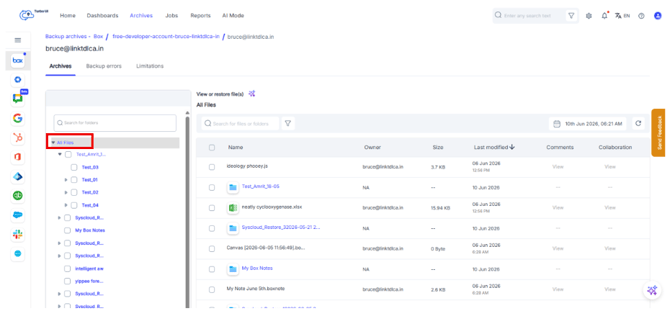
- For Point-in-time restore from a specific archive version, select the snapshot date from the top right corner.
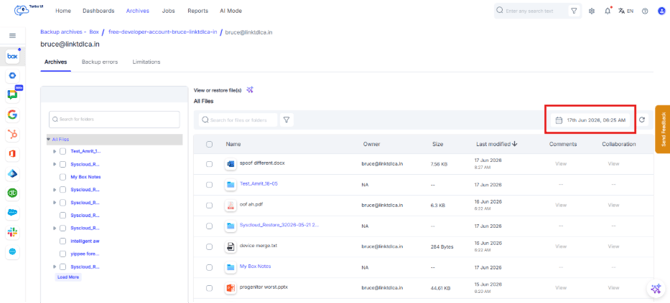
For Point-in-time restore, Select the specific date for both From & To dates. Then click Apply.
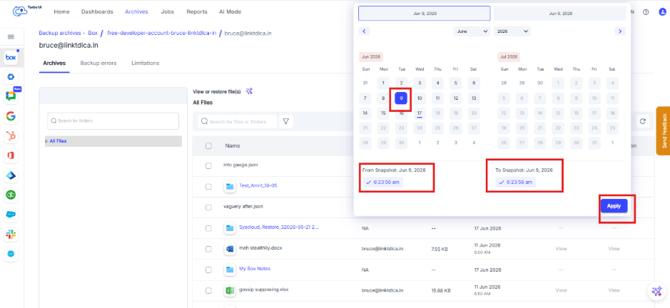
Please note that if you select a range of dates, the latest file across all file versions that fall within your selected timeframe, will be displayed. - Select the folder you want to restore. You can select a folder either from the left-side folder tree or from the main file and folder list.
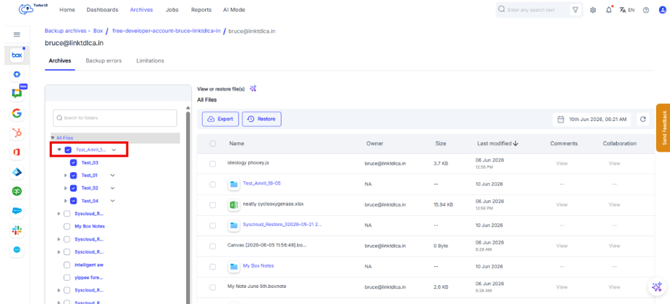
- Click Restore.
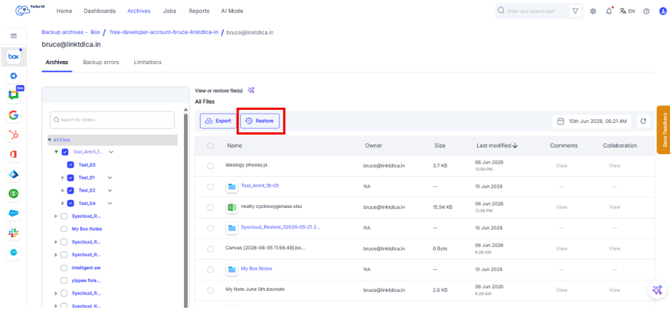
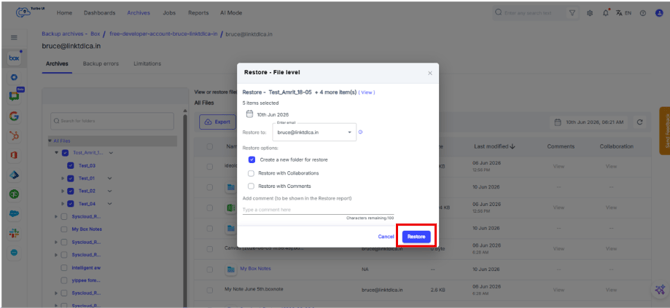
- In the Restore pop-up window, verify the selected folder and snapshot date.
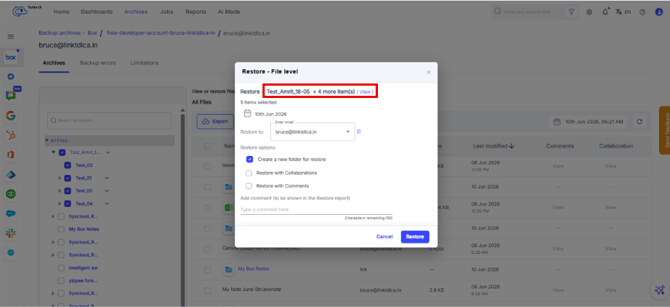
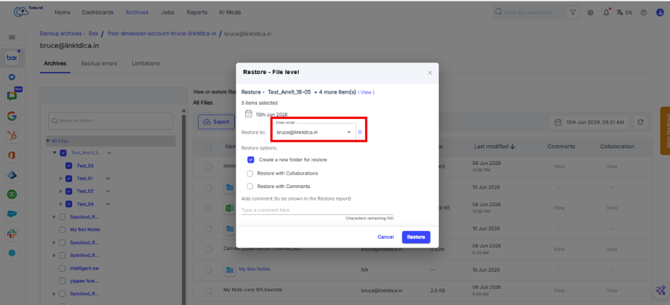
- In the Restore to field, select the target Box user account. By default, SysCloud may show the original user account. You can change this to another available Box user account if required for cross-user restoration.
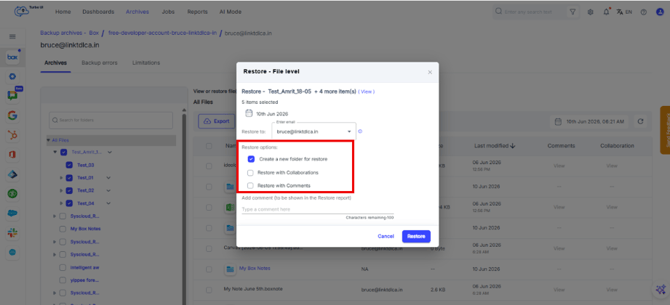
- Under Restore options, select the required options:
Restore option Use this when Create a new folder for restore This will restore the files to a new folder named Syscloud_Restore_TIMESTAMP. This helps avoid mixing restored data with existing Box data Restore with Collaborations This will restore the files with all the shared permissions and access Restore with Comments This will restore the files, and the associated box comments
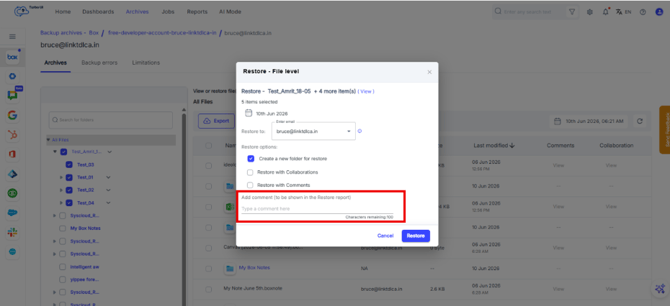
- Optional: Add a restore comment in the Add comment field.
- Click Restore.
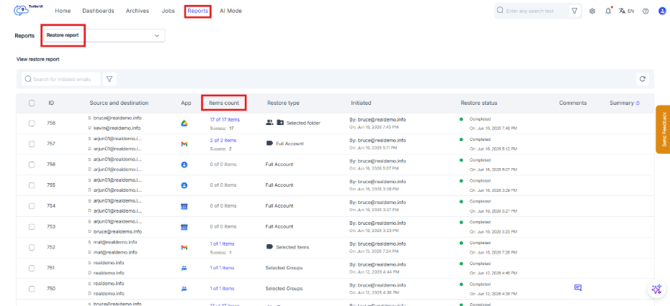
- The Restore progress can be viewed in Reports > Restore Reports. In case of error or failure, you can click on the count under the Items count column to check Errors and Limitations.
Restore an individual Box file:
Use this option when you want to restore a specific file from a user’s Box archive. After performing the steps 1 to 4 in the top section, continue from here.
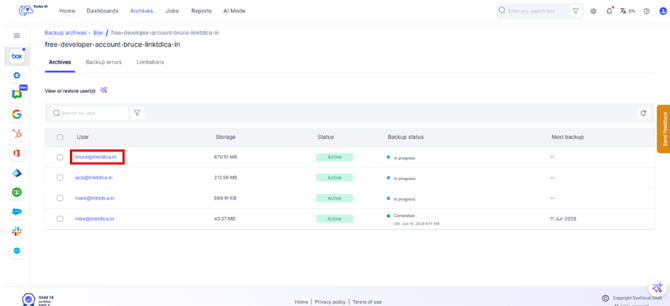
- In the Box archive view, open the user’s archive by clicking to view the backed-up Box files and folders.
- Browse the folder structure from the left-side folder navigation panel.
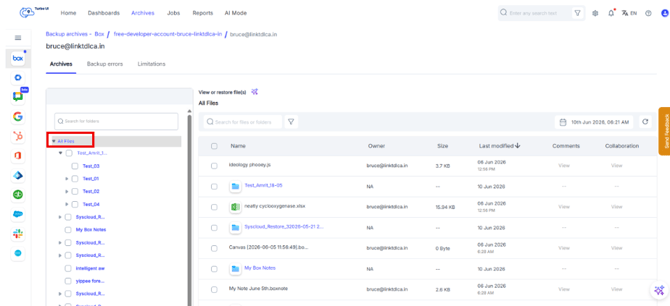
- For Point-in-time restore from a specific archive version, select the snapshot date from the top right corner.
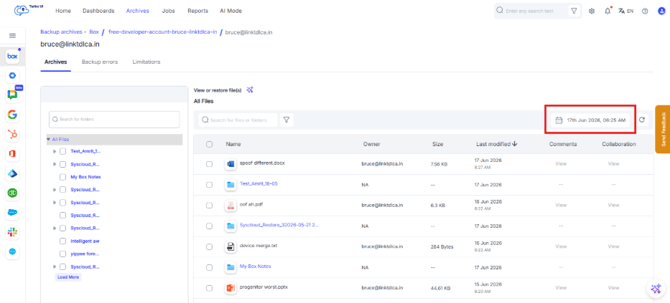
For Point-in-time restore, Select the specific date for both From & To dates. Then click Apply.
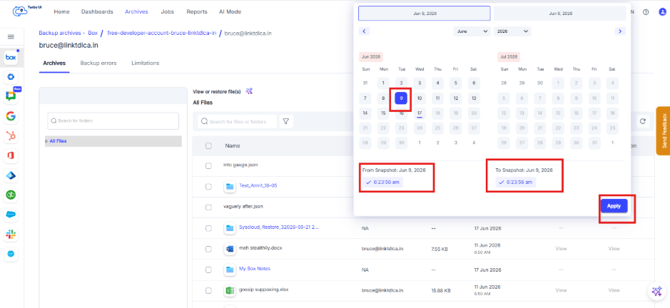
Please note that if you select a range of dates, the latest file across all file versions that fall within your selected timeframe, will be displayed. - Use the left-side folder navigation panel to browse to the folder where the file is located. In the main file list, select the required file.
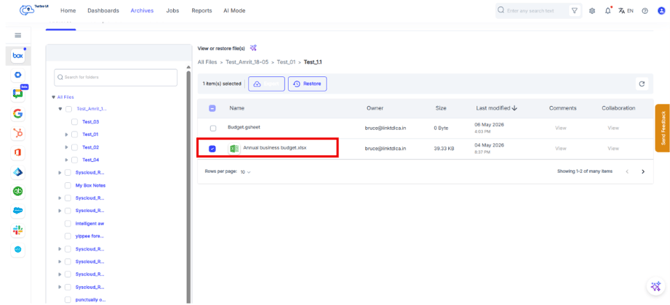
- Click Restore.
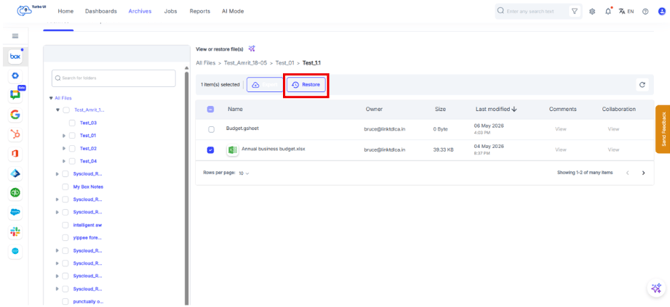
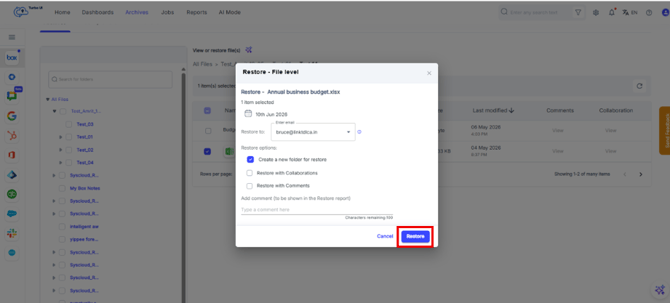
- In the Restore - File level window, verify the selected file.
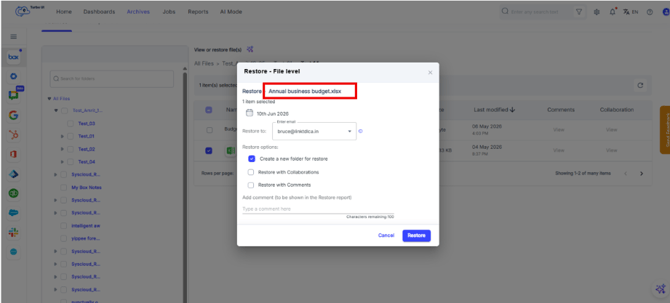
- In the Restore to field, select the Box user account where the file should be restored. By default, SysCloud may show the original user account. You can change this to another available Box user account if required for cross-user restoration.
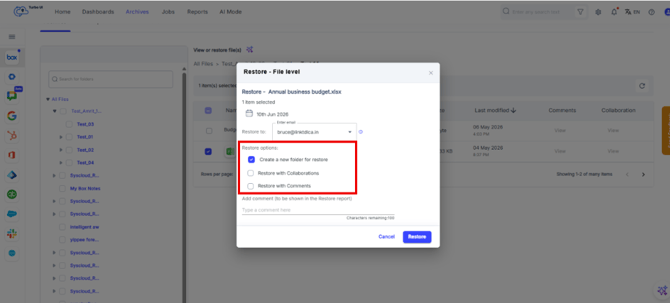
- Under Restore options, select the required options:
Restore option Use this when Create a new folder for restore This will restore the files to a new folder named Syscloud_Restore_TIMESTAMP. This helps avoid mixing restored data with existing Box data Restore with Collaborations This will restore the files with all the shared permissions and access Restore with Comments This will restore the files, and the associated box comments
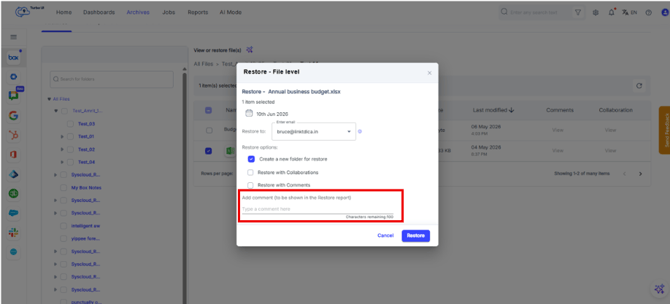
- Optional: Add a comment in the Add comment field.
- Click Restore.
- The Restore progress can be viewed in Reports > Restore Reports. In case of error or failure, you can click on the count under the Items count column to check Errors and Limitations.