![Untitled design (1)-Aug-01-2022-12-37-27-80-PM.png]](https://help.syscloud.com/hs-fs/hubfs/Untitled%20design%20(1)-Aug-01-2022-12-37-27-80-PM.png?height=40&name=Untitled%20design%20(1)-Aug-01-2022-12-37-27-80-PM.png)
Follow the below steps to restore Google Classroom classwork data from the SysCloud backup application:
Step 1: Log in to SysCloud using your admin credentials.
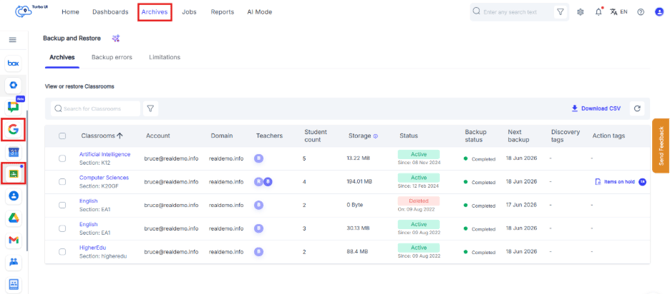
Step 2: Click the Archives tab in the top navigation bar. From the left panel, select the Google Workspace logo, and then click the Google Classroom logo to view the archived Google Classroom backup data.
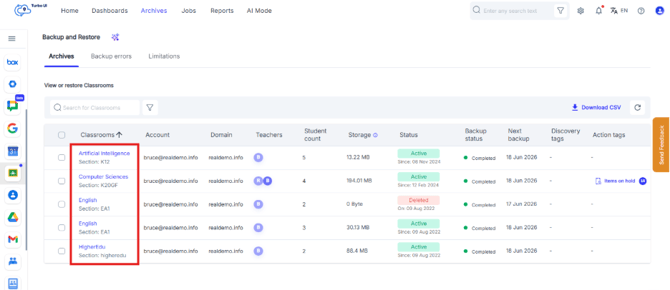
Step 3: Click the classroom from which you want to restore the classwork.
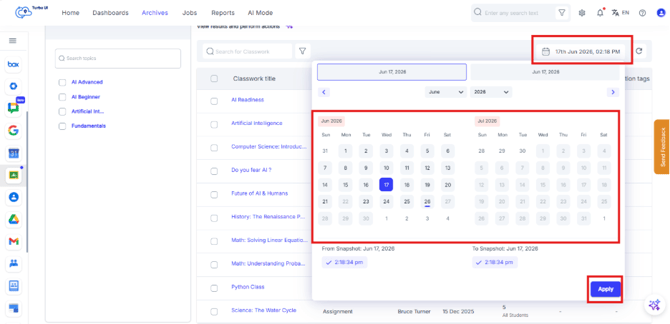
Step 4: On the Archives page, if you want to restore a specific version of a file, use the Snapshot feature. Select the backup date from which you want to restore the item, then click Apply.
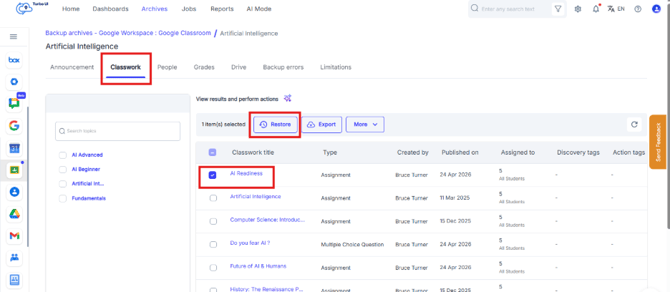
Step 5: From the listed items, Click the Classwork tab, select the classwork item(s) you want to restore, and then click Restore.
Step 6: In the Restore - Classwork pop-up, Optionally, enter a comment that will be displayed in the restore report, and then click Restore to start the restoration process.
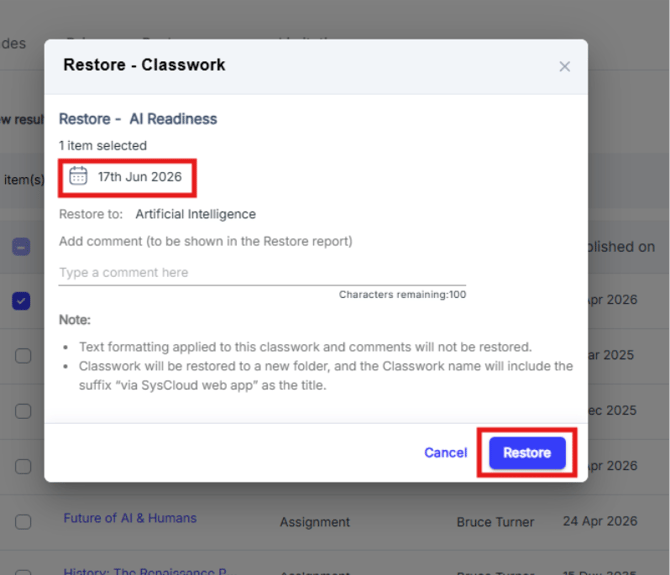
Text formatting applied to classwork content and comments is not restored. Restored classwork is created in a new folder, and the classwork title is appended with the suffix "via SysCloud web app" to distinguish it from the original.
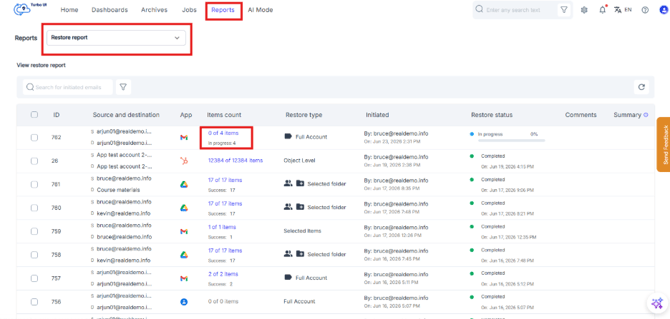
Step 7: To view the restore status, go to Reports > Restore Reports.