![Untitled design (1)-Aug-01-2022-12-37-27-80-PM.png]](https://help.syscloud.com/hs-fs/hubfs/Untitled%20design%20(1)-Aug-01-2022-12-37-27-80-PM.png?height=40&name=Untitled%20design%20(1)-Aug-01-2022-12-37-27-80-PM.png)
You can enable Content Search while creating an eDiscovery search for QuickBooks Online data. When Content Search is enabled, SysCloud searches the indexed content of supported QuickBooks Online objects instead of searching only metadata fields.
Prerequisite
Make sure eDiscovery and Content search indexing are enabled for QuickBooks Online in the backup job. Content Search results are available only for data indexed after this setting is enabled.
Steps to perform a Content Search
- Log in to the SysCloud application.
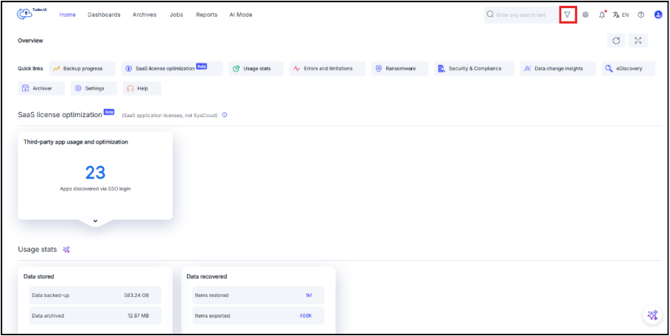
- Click the filter icon in the search bar from the top-right corner of the application.
- Configure the eDiscovery search details.
- Enter a Search name.
- Enter a Search description, if required.
- Select the Search type as One-time search or Scheduled search.
- Select any required Search tags, if applicable.
- Enter the required value in the Search text field.
- Select the Enable content search checkbox.
- Under Category, select All clouds/Files (only these options allow content search for QuickBooks Online).
- In the Apps field, select QuickBooks Online.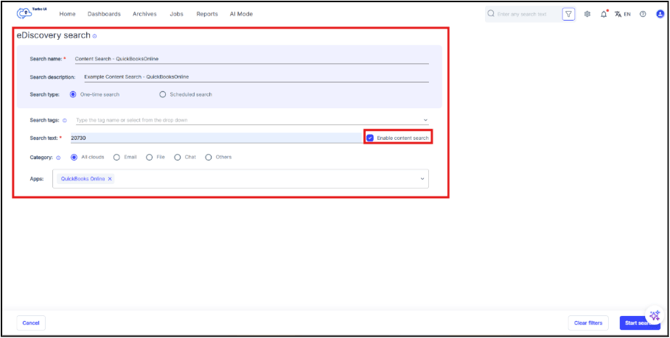
- Click Start Search.
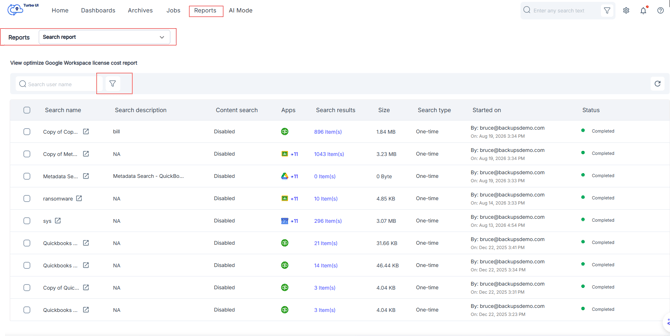
- The search results can be viewed at Search Reports under Reports Tab.
- Select Enable content search only when you want to search indexed item content. If Enable content search is not selected, SysCloud performs a metadata-based eDiscovery search
- Content Search depends on the QuickBooks Online data that has already been backed up and indexed by SysCloud.
- For QuickBooks Online, Content Search applies to supported transactions, list items, and attachables.