![Untitled design (1)-Aug-01-2022-12-37-27-80-PM.png]](https://help.syscloud.com/hs-fs/hubfs/Untitled%20design%20(1)-Aug-01-2022-12-37-27-80-PM.png?height=40&name=Untitled%20design%20(1)-Aug-01-2022-12-37-27-80-PM.png)
Follow these steps to export a user’s entire Google Workspace Contacts archive from the SysCloud backup application.
Steps
Step 1: Log in to the SysCloud backup application using your credentials.
Step 2: Go to Archives.
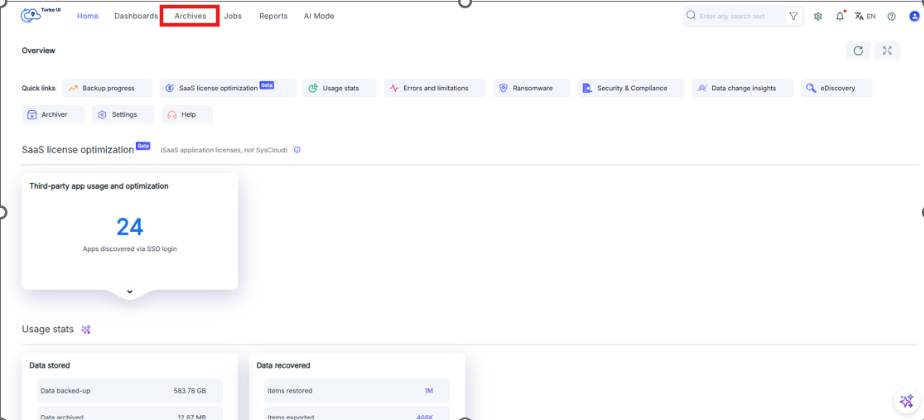
Step 3: From the cloud navigation bar on the left, select Google Workspace.
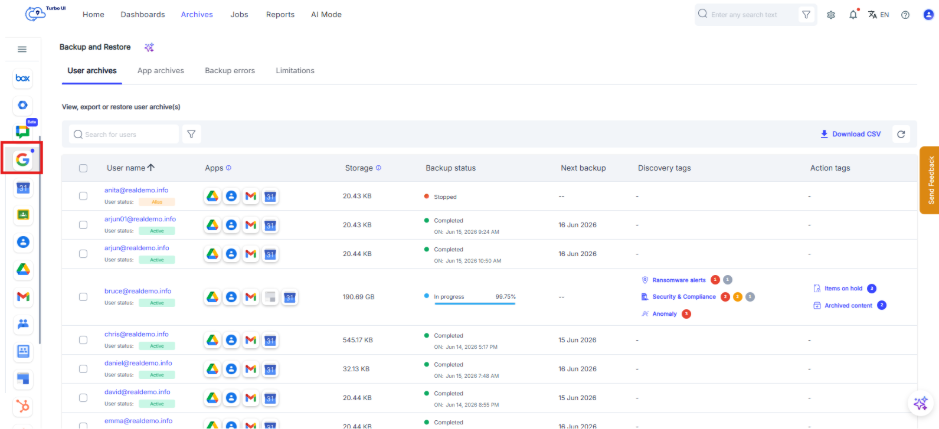
Step 4: Under Google Workspace, select Contacts.
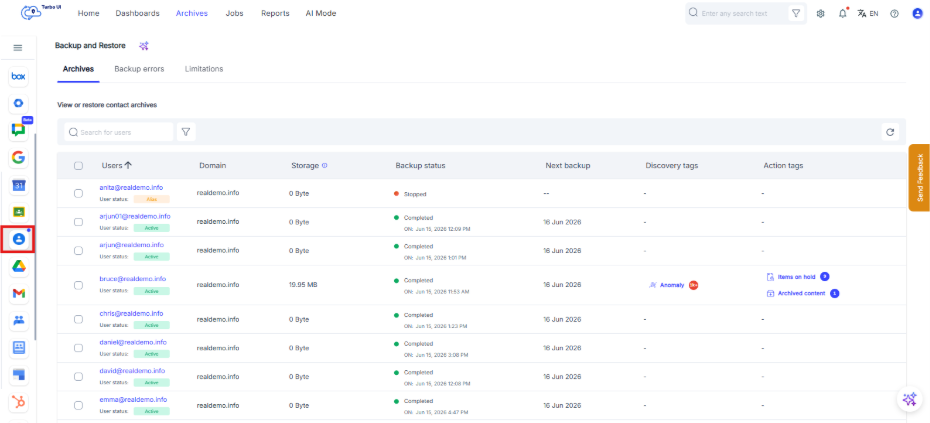
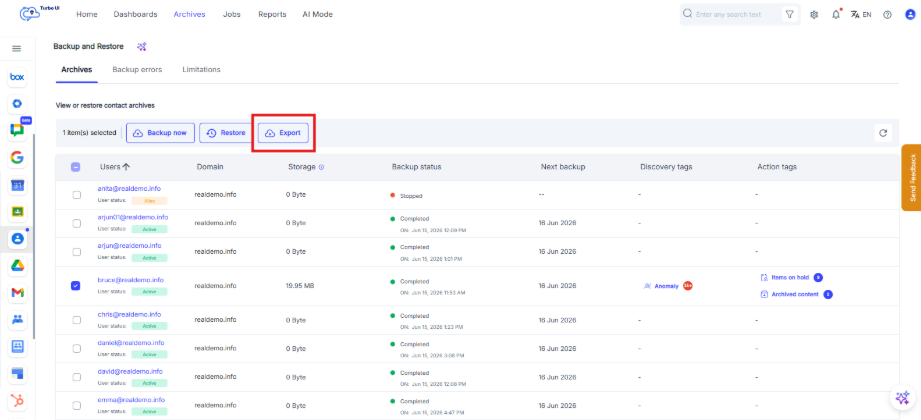
Step 5: Select the checkbox next to the user whose Google Contacts archive you want to export.
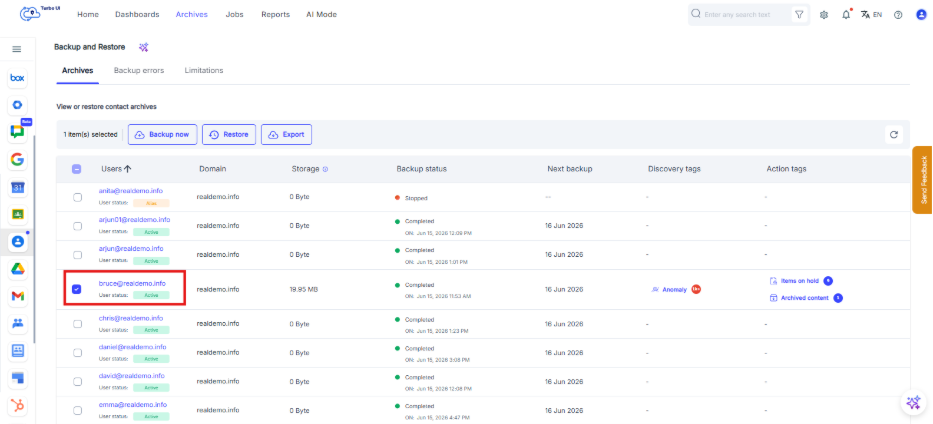
Step 6: Click Export.
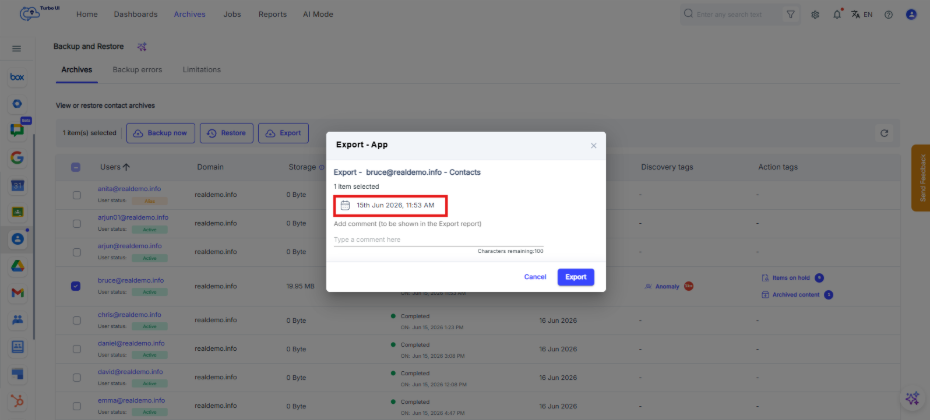
Step 7: In the Export - App pop-up, select the required snapshot date for Point-in-time export.
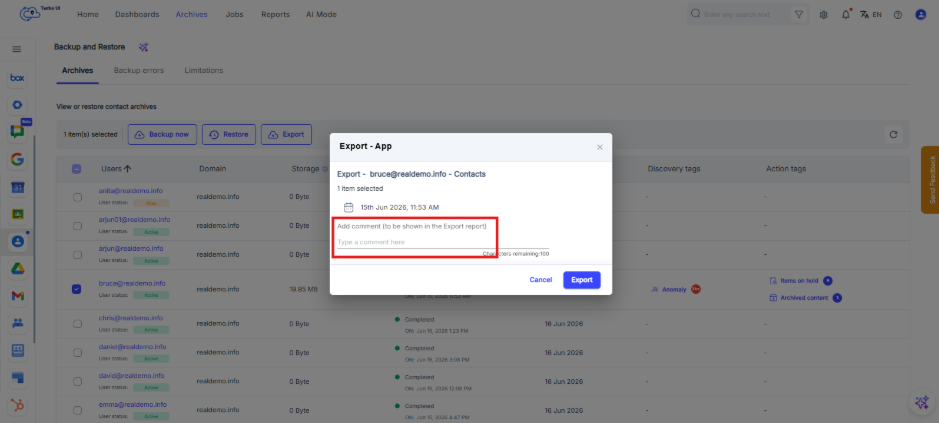
Step 8: Add a comment, if required. The comment will be shown in the export report.
Step 9: Click Export.
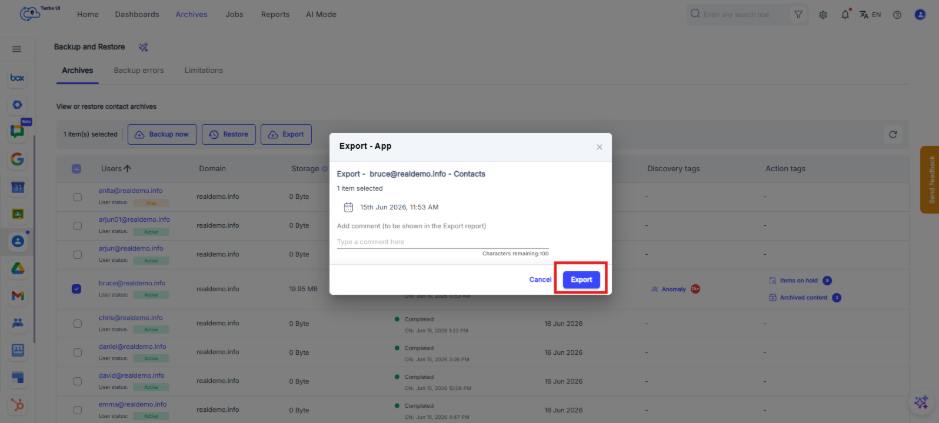
The export process will be initiated for the selected user’s Google Contacts archive.
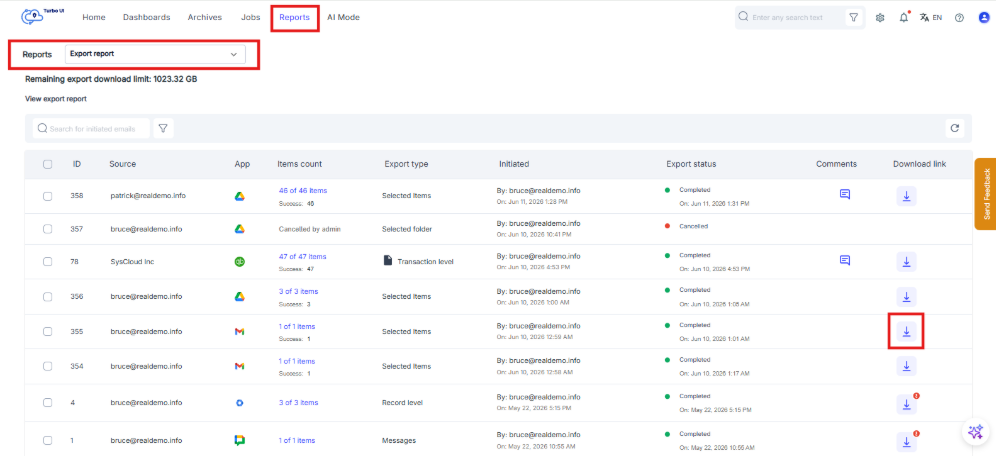
Step 10:View export status: Go to Reports > Export report to check the export status and download the exported data when it is ready. The download link is available for 7 days. The contents will be downloaded in a zipped file.
On unzipping the downloaded file, the contact list is available in VCS format.
The time taken to generate the download link depends on the number of contacts in the selected archive.