![Untitled design (1)-Aug-01-2022-12-37-27-80-PM.png]](https://help.syscloud.com/hs-fs/hubfs/Untitled%20design%20(1)-Aug-01-2022-12-37-27-80-PM.png?height=40&name=Untitled%20design%20(1)-Aug-01-2022-12-37-27-80-PM.png)
You can use eDiscovery search to search backed-up QuickBooks Online data based on indexed metadata such as transaction ID, company, object type, vendor, amount, payment type, transaction date, and related item attributes.
Prerequisite
Make sure eDiscovery is enabled for QuickBooks Online in the backup job. Metadata Search results are available only for data indexed after eDiscovery is enabled.
Steps to perform a Metadata Search
- Log in to the SysCloud application.
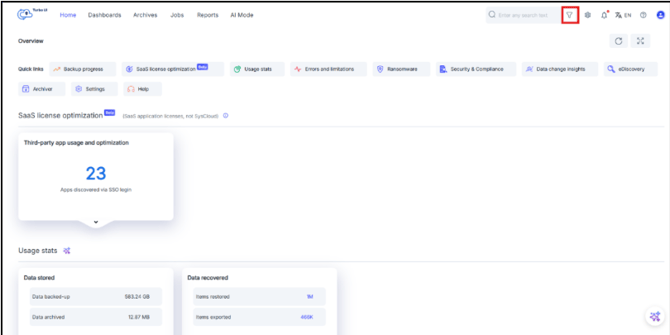
- Click the filter icon in the search bar from the top-right corner of the application to reach eDiscovery.
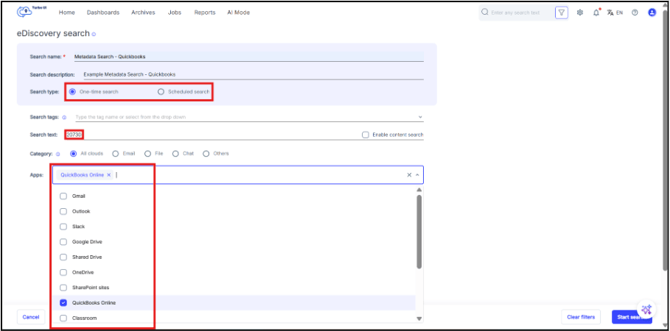
- On the eDiscovery search page, enter a Search name.
Example: Metadata Search - QuickBooks Online - Enter a Search description, if required.
Example: Example Metadata Search - QuickBooks Online - Under Search type, select one of the following options:
- One-time search: Runs the search once based on the selected criteria.
- Scheduled search: Runs the search based on a defined schedule.
- In the Search text field, enter the metadata value you want to search for.
Example: To search for a QuickBooks Online bill payment with ID 20730, enter 20730. - Leave Enable content search unchecked.
This ensures that the search is performed as a Metadata Search and not as a Content Search. - Under Category, select All clouds.
- In the Apps dropdown, select QuickBooks Online.
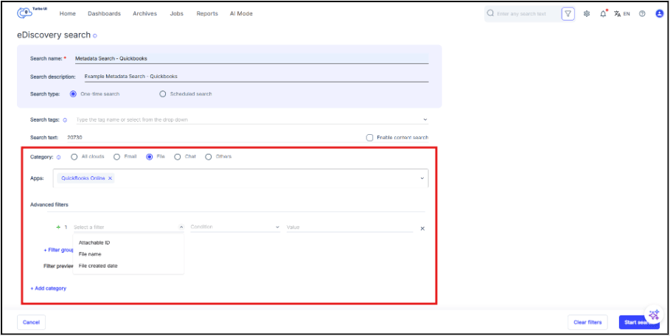
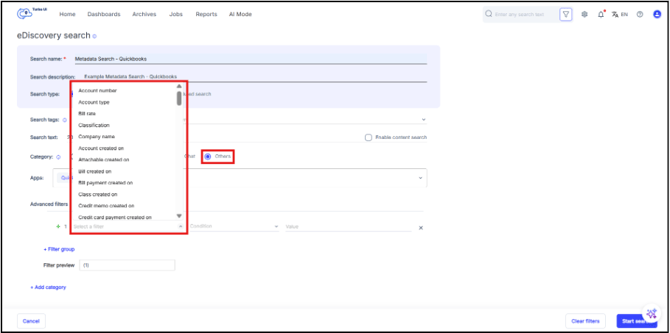
 Note: By choosing category as File or Others and then by choosing QuickBooks Online from Apps we get access to Advanced Filter.
- Optional: Use Search tags to filter by available action or discovery tags such as Hold, Archived, or other configured tags.
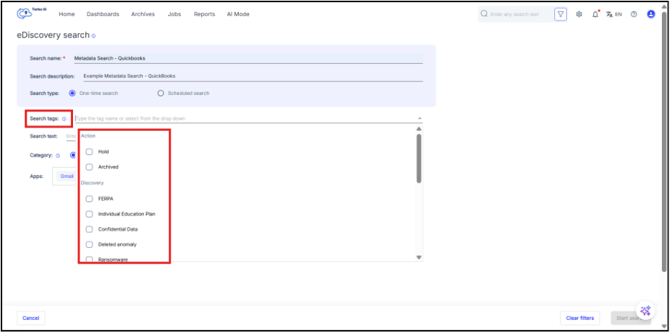
- Click Start search.
Viewing Metadata Search results
After the search is completed, SysCloud displays the matching QuickBooks Online results.
- In the results page, review the result displayed in the table.
- Click the company name to view the matching QuickBooks Online objects.
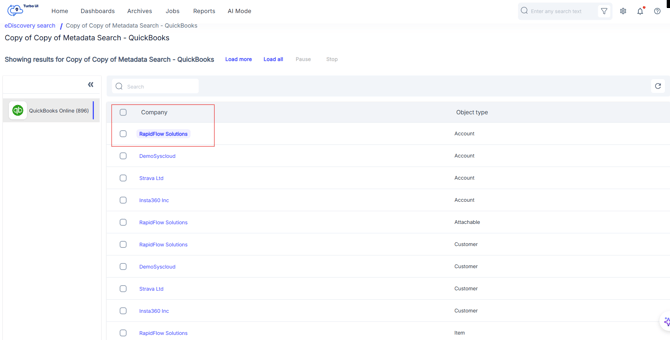
- On the object list page, review the available metadata fields.
- Click the object ID to open the detailed metadata view.
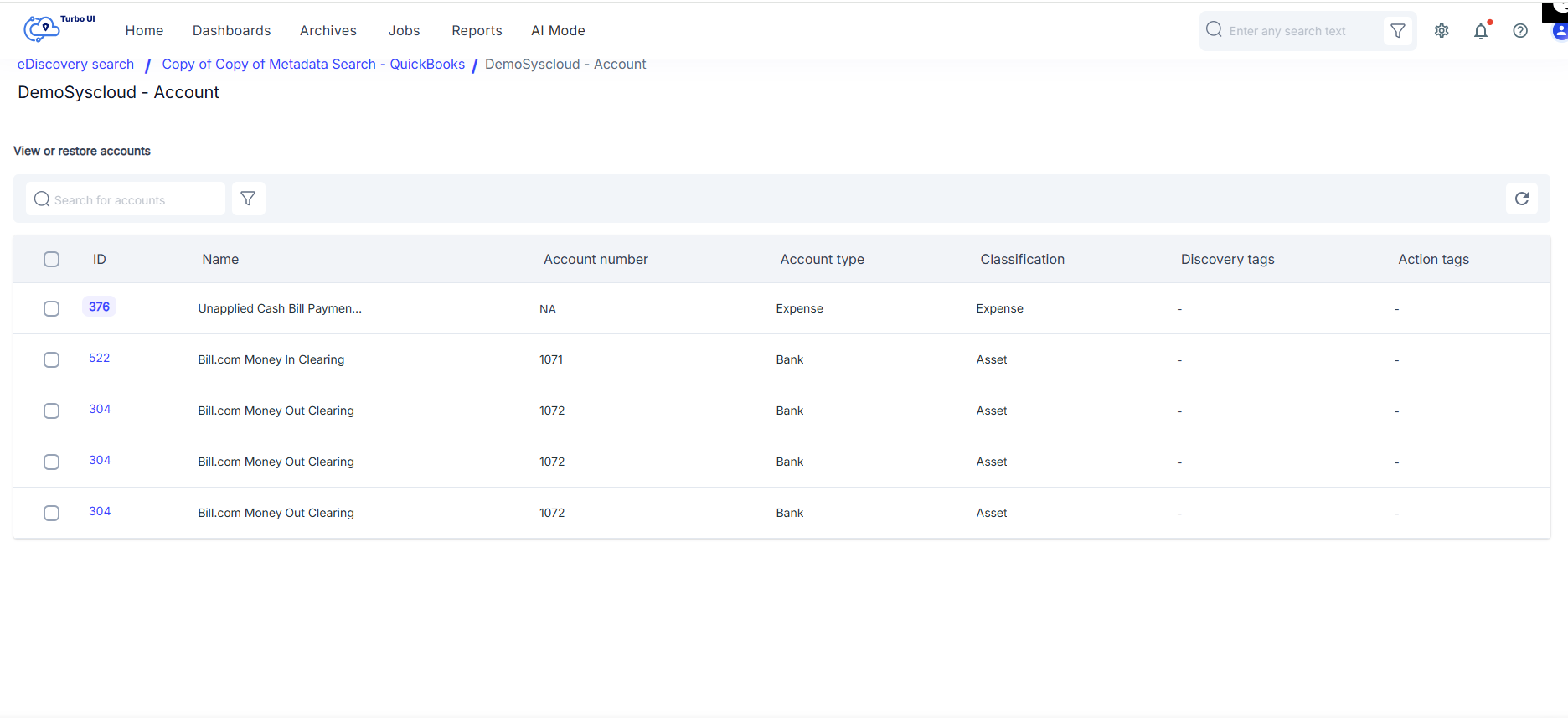
- This will lead you to the item details page:

- Search results depend on the QuickBooks Online data already backed up and indexed by SysCloud.
- Do not select Enable content search when performing a Metadata Search.
- Metadata Search searches indexed metadata fields, not the full content of the backed-up item.
- QuickBooks Online Metadata Search results are grouped by company and object type.