![Untitled design (1)-Aug-01-2022-12-37-27-80-PM.png]](https://help.syscloud.com/hs-fs/hubfs/Untitled%20design%20(1)-Aug-01-2022-12-37-27-80-PM.png?height=40&name=Untitled%20design%20(1)-Aug-01-2022-12-37-27-80-PM.png)
To perform a cross-shared drive restore using SysCloud, follow the below steps:
Step 1: Log in to the SysCloud backup application using your admin credentials.
Step 2: Click on “Archives” and select Shared Drives under Google Workspace.
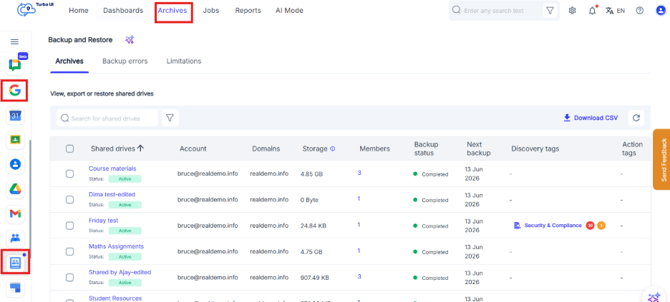
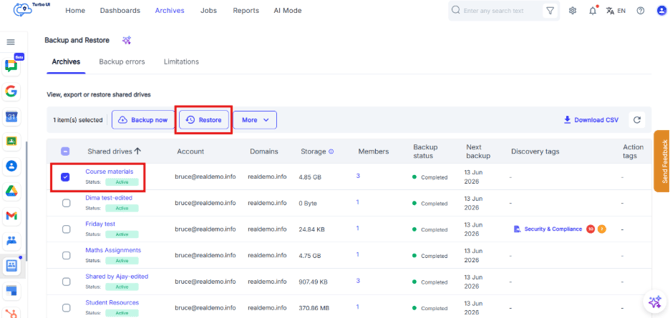
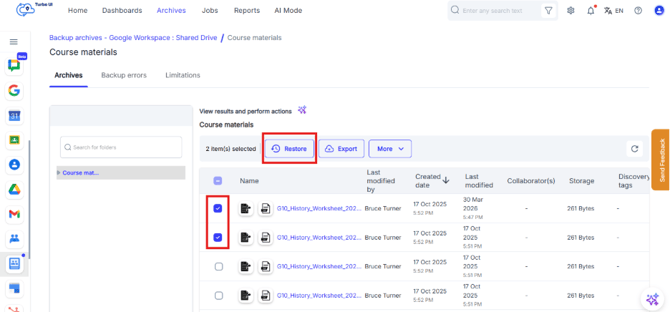
Step 3: To restore an entire shared drive, select the checkbox next to the shared drive name and click Restore. To restore specific files within the shared drive, click on the required shared drive name to view its archives, select the files that need to be restored, and click Restore.
Step 4: In the restore pop-up, select the backup snapshot that you need to restore. By default, the data will be restored to the original shared drive from which it was deleted.
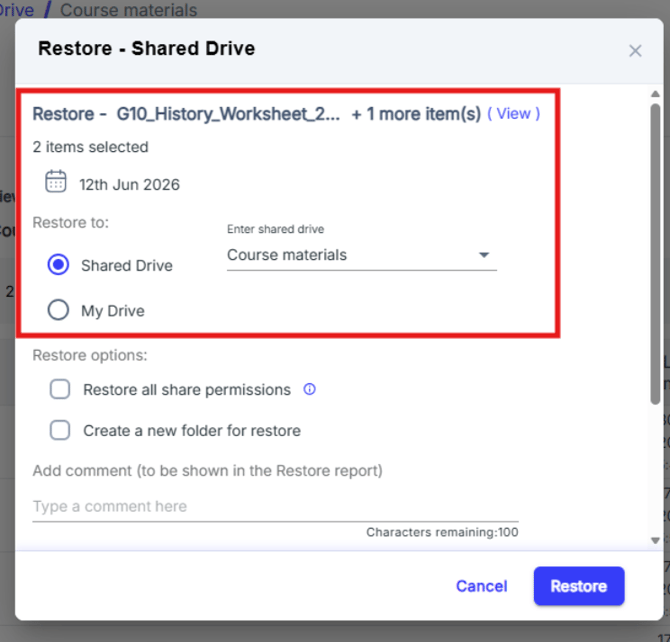
Step 5: Add any comments to be shown in the restore report (optional) and click Restore.
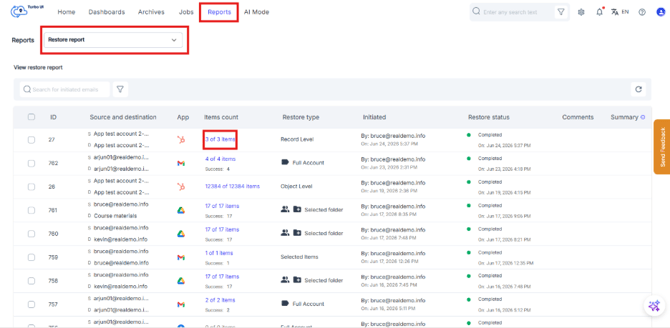
To see the restore progress, navigate to Reports and select Restore reports under Google Workspace.
-
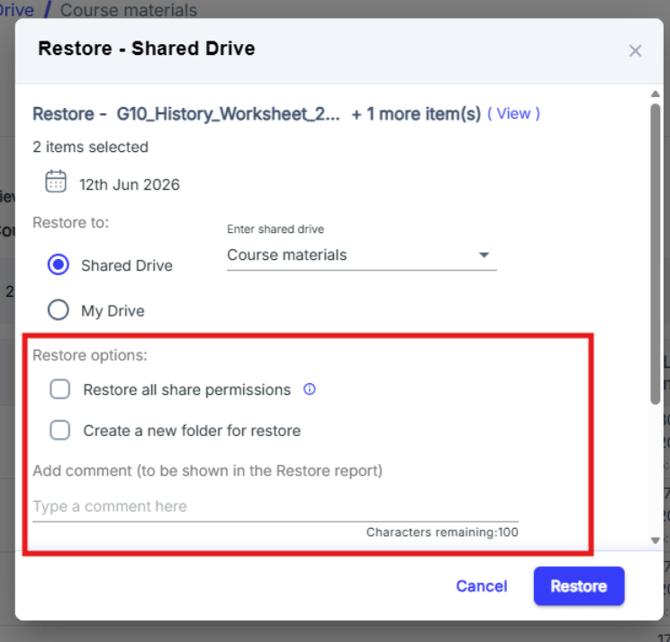
Restore all share permissions: If this checkbox is enabled the collaborator(s) of the original file will have access to the restored file. Please inform collaborator(s) about the new file
-
Create a new folder for restore: If this checkbox is enabled, the selected files will be restored as a new folder in your cloud application.
Step 6: You can monitor the restore status from Reports > Restore Reports.