![Untitled design (1)-Aug-01-2022-12-37-27-80-PM.png]](https://help.syscloud.com/hs-fs/hubfs/Untitled%20design%20(1)-Aug-01-2022-12-37-27-80-PM.png?height=40&name=Untitled%20design%20(1)-Aug-01-2022-12-37-27-80-PM.png)
Follow these steps to restore multiple Outlook emails from the SysCloud Backup Application:
Turbo UI
Step 1: Log in to SysCloud using your admin credentials.
Step 2: Click on “Archives” and select “Microsoft 365” from the Side Navigation Panel.
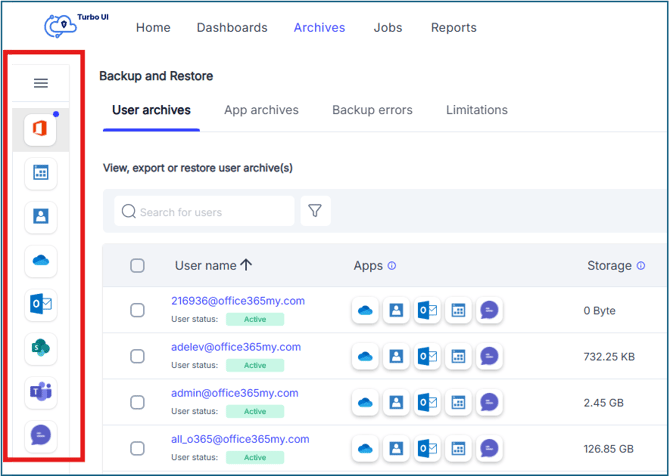
Step 3: Navigate to the user archives tab and click on a username to drill down into their archive.
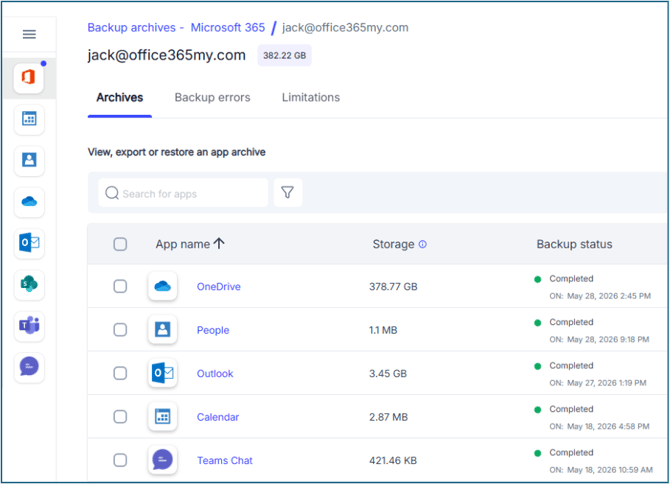
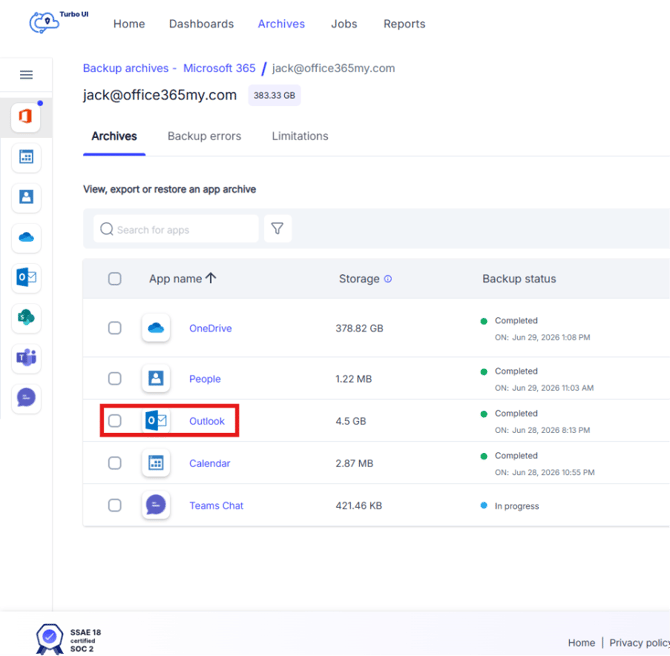
Step 4: Click Outlook to open the user’s Outlook archive.
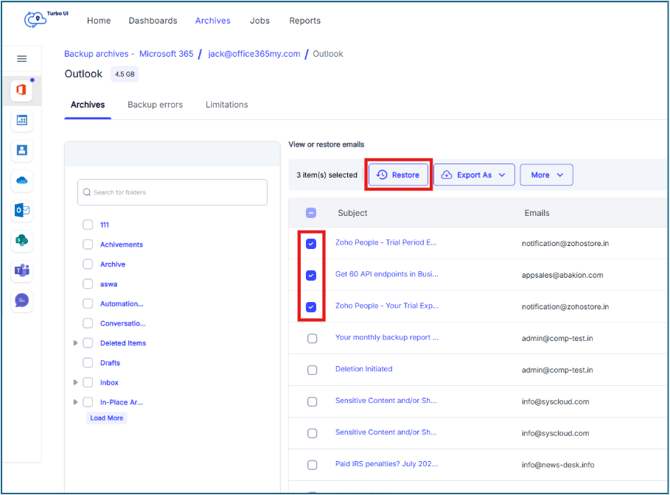
Step 5: Select multiple mails and then click Restore.
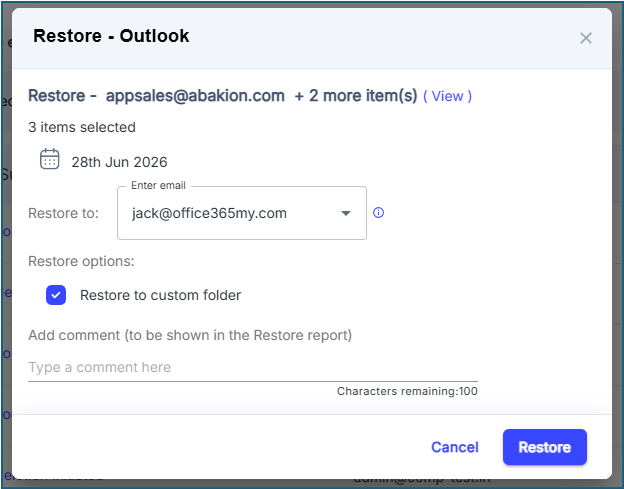
Step 6: Verify the selected snapshot date and time in the Restore window (click here to learn how to select snapshots)
By default, the selected user will be selected. To perform a cross-user restore, you can select a different user of the same domain.
In the restore pop-up screen select the checkbox, "Restore to custom folder” to restore the mail to a new custom folder. You can also provide a comment if needed. Click Restore.
You can view the restore status from Reports > Restore report.