![Untitled design (1)-Aug-01-2022-12-37-27-80-PM.png]](https://help.syscloud.com/hs-fs/hubfs/Untitled%20design%20(1)-Aug-01-2022-12-37-27-80-PM.png?height=40&name=Untitled%20design%20(1)-Aug-01-2022-12-37-27-80-PM.png)
Follow the steps to restore the SharePoint Sites and Microsoft Teams Sites backup:
Turbo UI
Step 1: Log in to SysCloud using your admin credentials.
Step 2: Click on “Archives” and select “SharePoint” from the Side Navigation Panel.
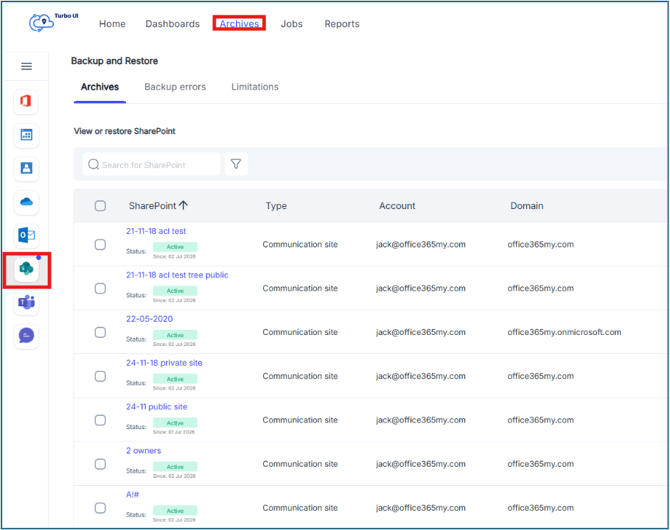
Step 3:
Option 1: In the Archives tab, select the checkbox next to the SharePoint site you want to restore. Click Restore.
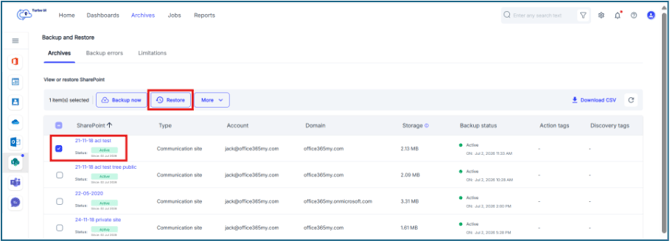
You can restore only one SharePoint site at a time when performing a site-level restore.
Option 2: To restore specific items inside a SharePoint site, click the SharePoint site name to open the site archive. Browse the site contents and select the required item, such as a document library, folder, file, list, or page. Select the checkbox next to the item you want to restore and click Restore.
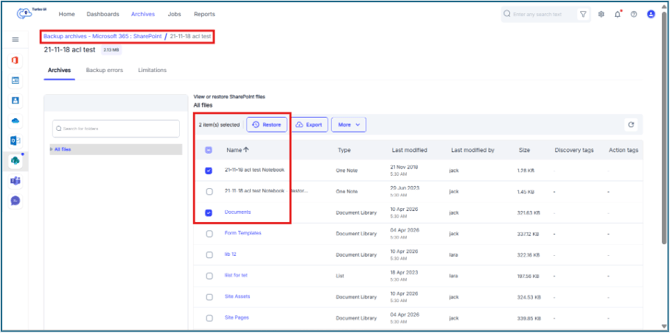
Step 4: In the Restore window, verify the selected snapshot date and time (click here to learn how to select snapshots). Select the required restore options, add an optional comment to be shown in the Restore report, and click Restore.
To restore the selected items to a new SharePoint site, select Create a new SharePoint site for restore.
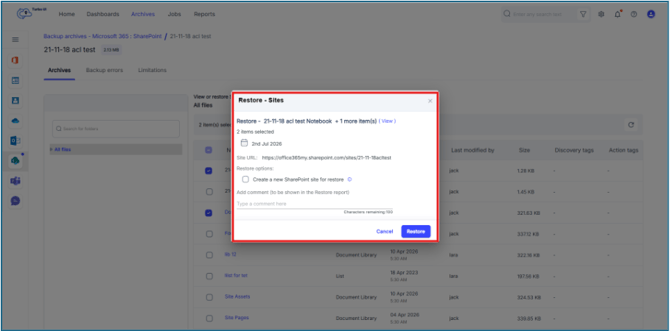
Sharing permissions for files, folders, and list items are not backed up when restoring to a new SharePoint site.
Step 5: You can view the restore status from Reports > Restore report.