![Untitled design (1)-Aug-01-2022-12-37-27-80-PM.png]](https://help.syscloud.com/hs-fs/hubfs/Untitled%20design%20(1)-Aug-01-2022-12-37-27-80-PM.png?height=40&name=Untitled%20design%20(1)-Aug-01-2022-12-37-27-80-PM.png)
Follow the steps below to add a backup administrator to the SysCloud application:
Step 1: Log in to the SysCloud backup application using your super admin credentials.
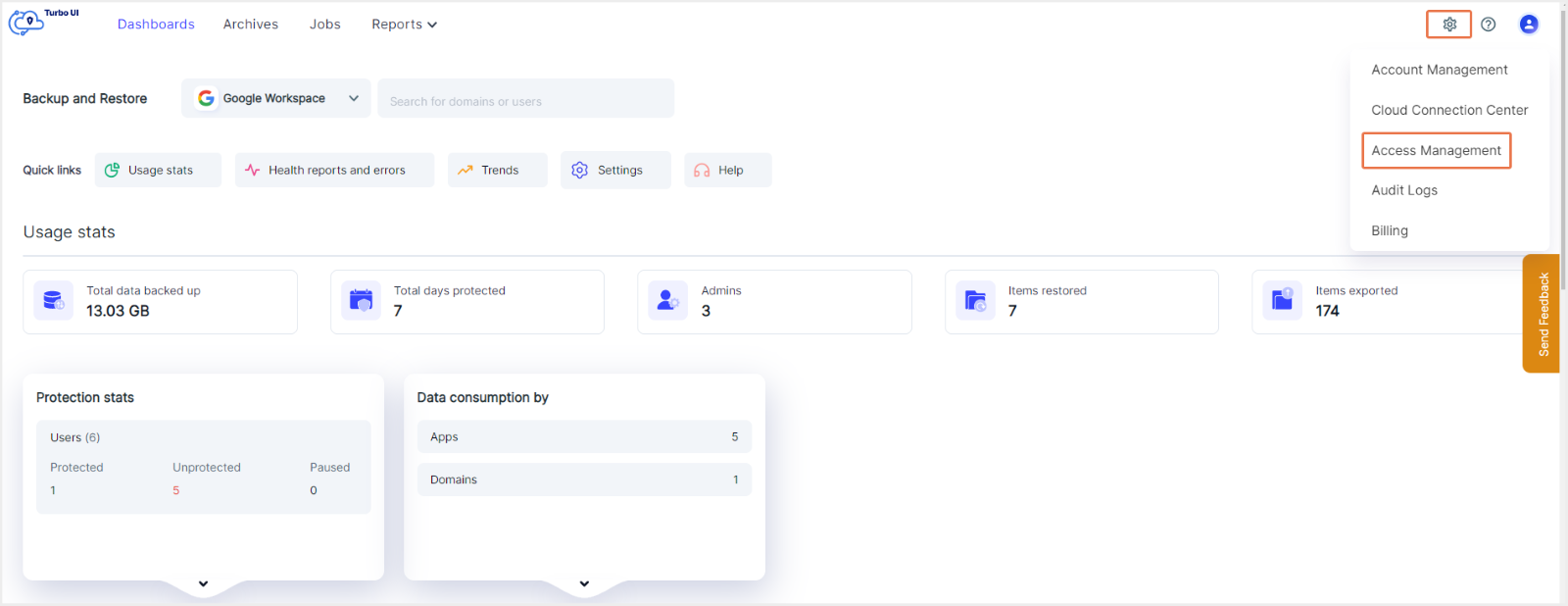
Step 2: Click on the “Settings” icon on the top right corner of the page. Select “Access management” from the drop-down.
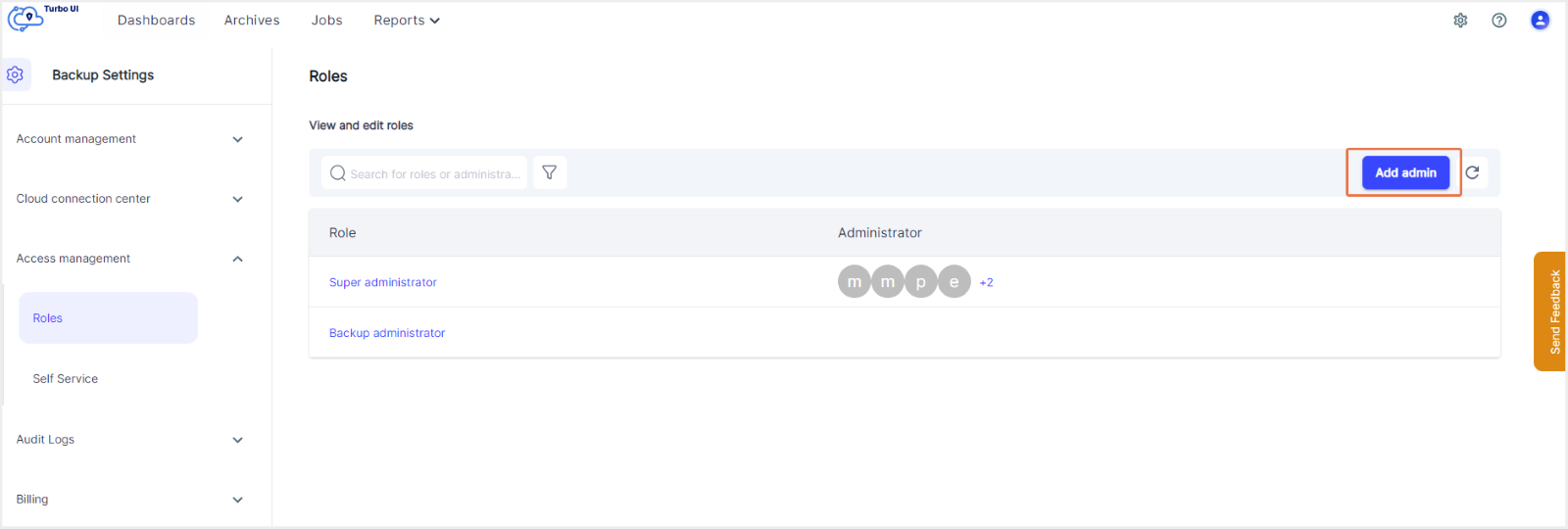
Step 3: To add a new backup admin role, click on “Add admin.”
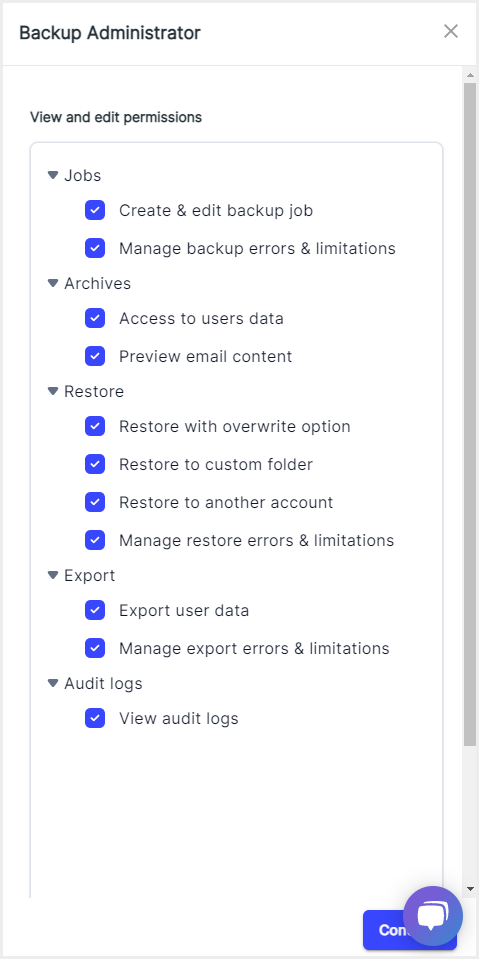
Step 4: Select “Backup administrator” from the list. If you want to view and edit permissions, click on “Edit permission.”
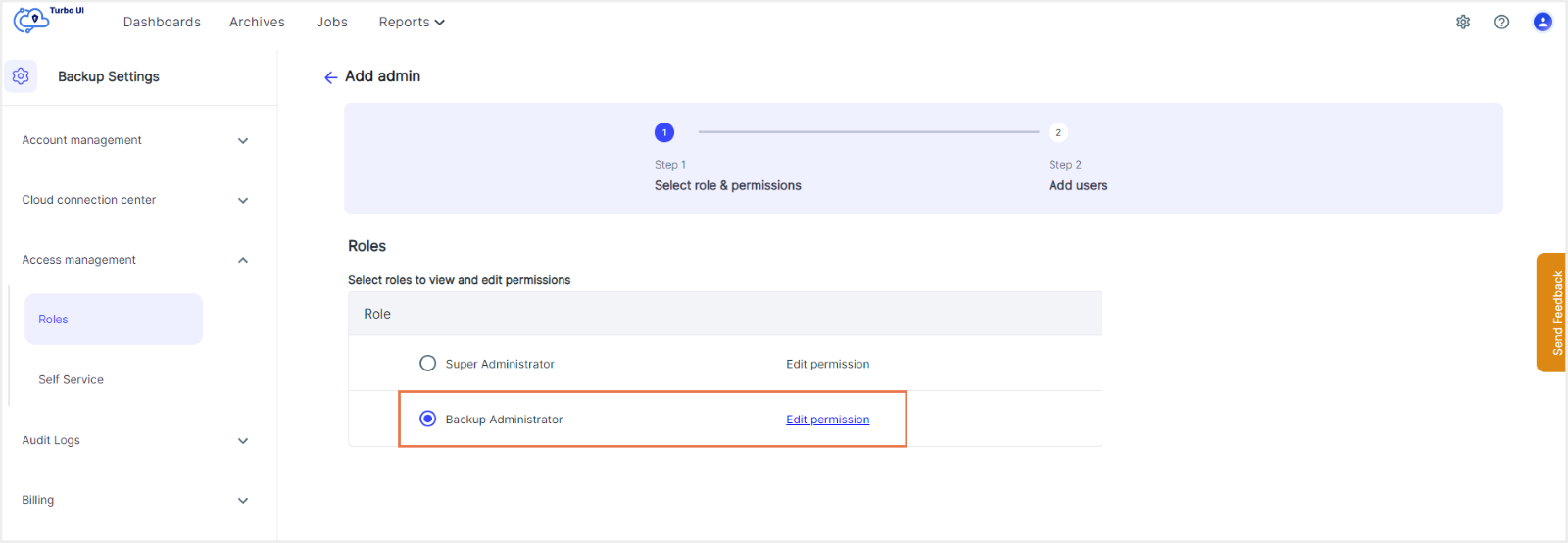
Note: By default, all permissions are enabled. Click on the checkbox next to the permissions to disable any of the permissions and click on “Continue.”
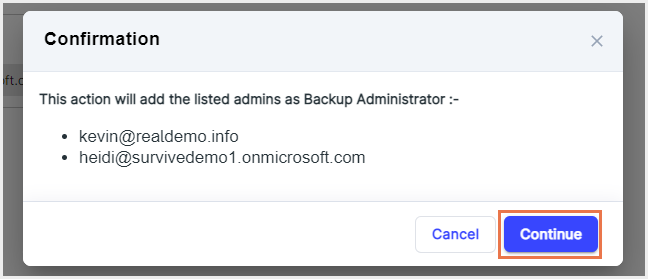
Step 5: Click on “Next.”
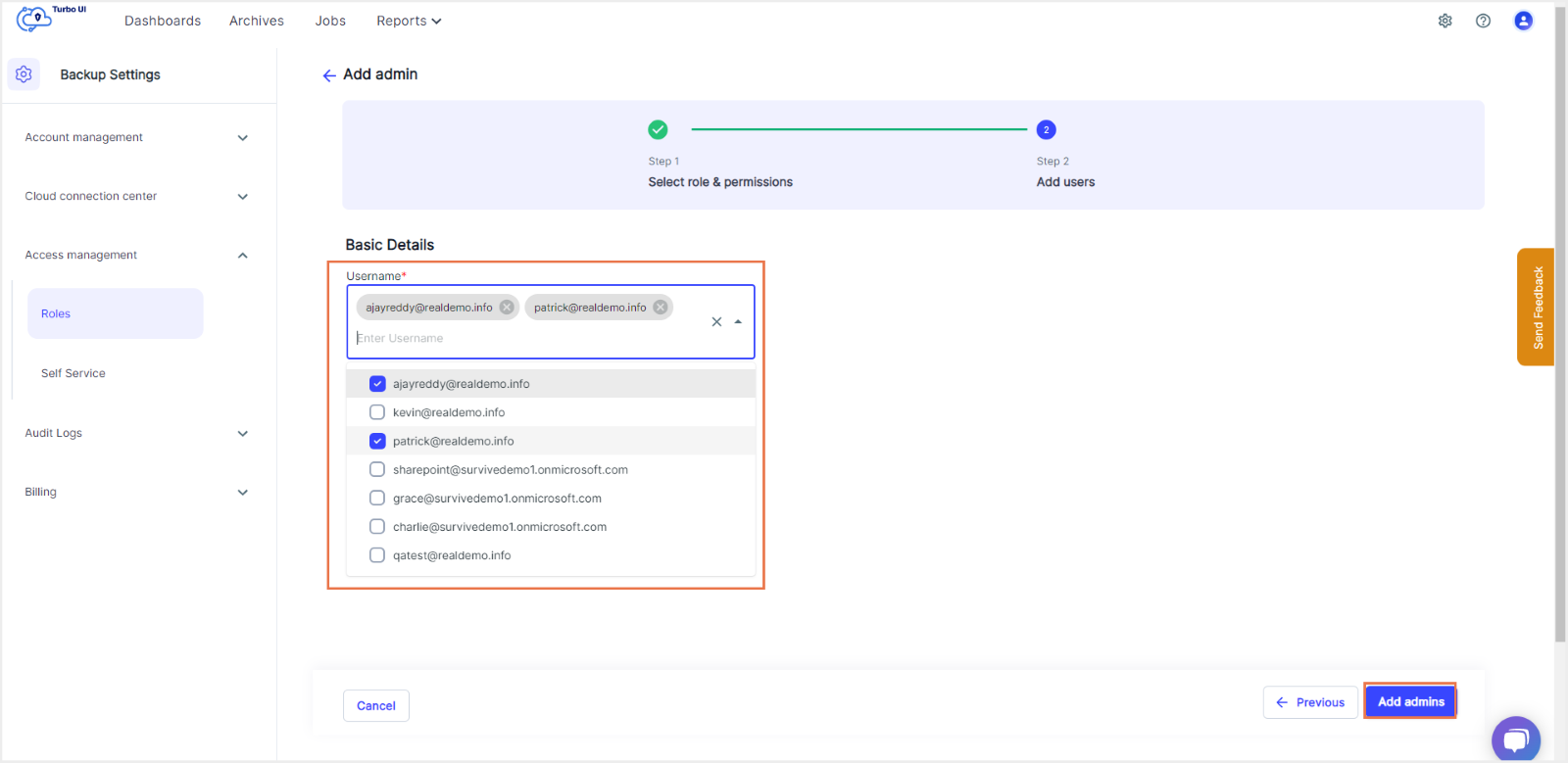
Step 6: Choose the username(s) that is to be added as the SysCloud application backup admin from the drop-down list and click on “add admins.”
Step 7: In the confirmation pop-up box, click on “Continue” to confirm adding the listed admins as backup administrators.