![Untitled design (1)-Aug-01-2022-12-37-27-80-PM.png]](https://help.syscloud.com/hs-fs/hubfs/Untitled%20design%20(1)-Aug-01-2022-12-37-27-80-PM.png?height=40&name=Untitled%20design%20(1)-Aug-01-2022-12-37-27-80-PM.png)
Follow the below steps to add an impersonation role:
Step 1: Please visit the exchange admin panel by clicking the following URL.
https://admin.exchange.microsoft.com/#/homepage
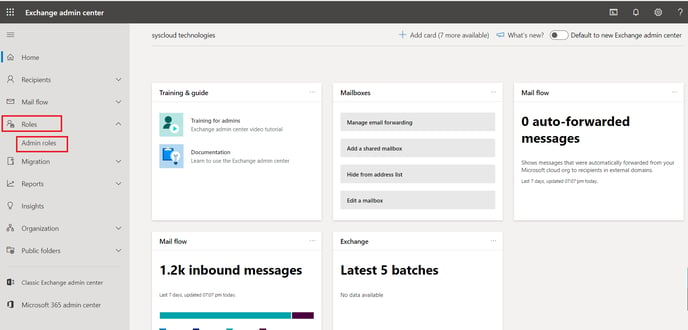
Step 2: Click on the “Roles” section and select “Admin roles” as shown in the below image.
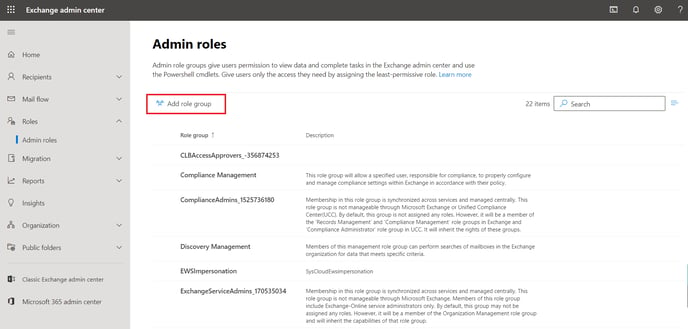
Step 3: Create a new admin role group by clicking on “Add role group” icon.
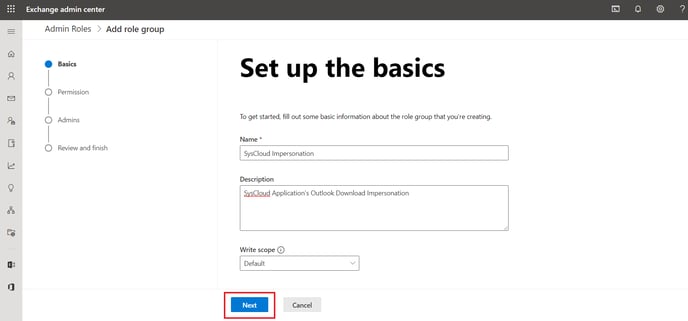
Step 4: Add name and description as shown in the below image and click on “Next”.
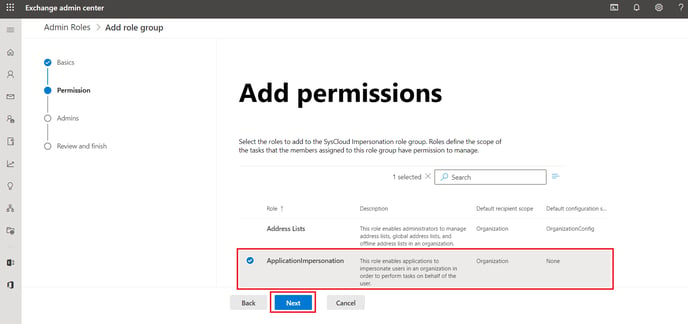
Step 5: Select the “ApplicationImpersonation” permission from the roles list and click on “Next”.
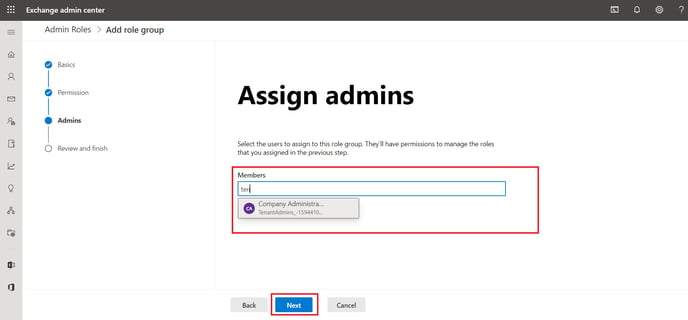
Step 6: Add the admin who installed the SysCloud application and click on “Next”.
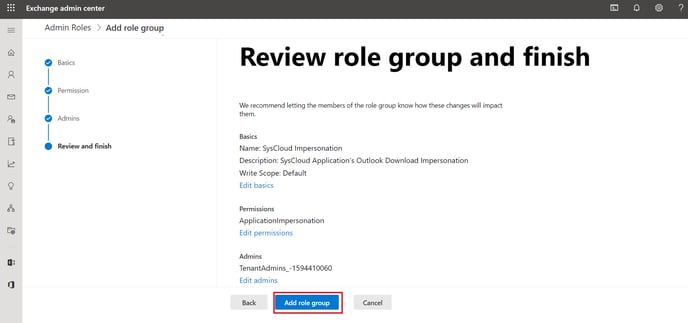
Step 7: Review the role group details and click on “Add role group”.