![Untitled design (1)-Aug-01-2022-12-37-27-80-PM.png]](https://help.syscloud.com/hs-fs/hubfs/Untitled%20design%20(1)-Aug-01-2022-12-37-27-80-PM.png?height=40&name=Untitled%20design%20(1)-Aug-01-2022-12-37-27-80-PM.png)
Step 1: Sign in to your SysCloud account.
Step 2: Navigate to Archives> Slack.
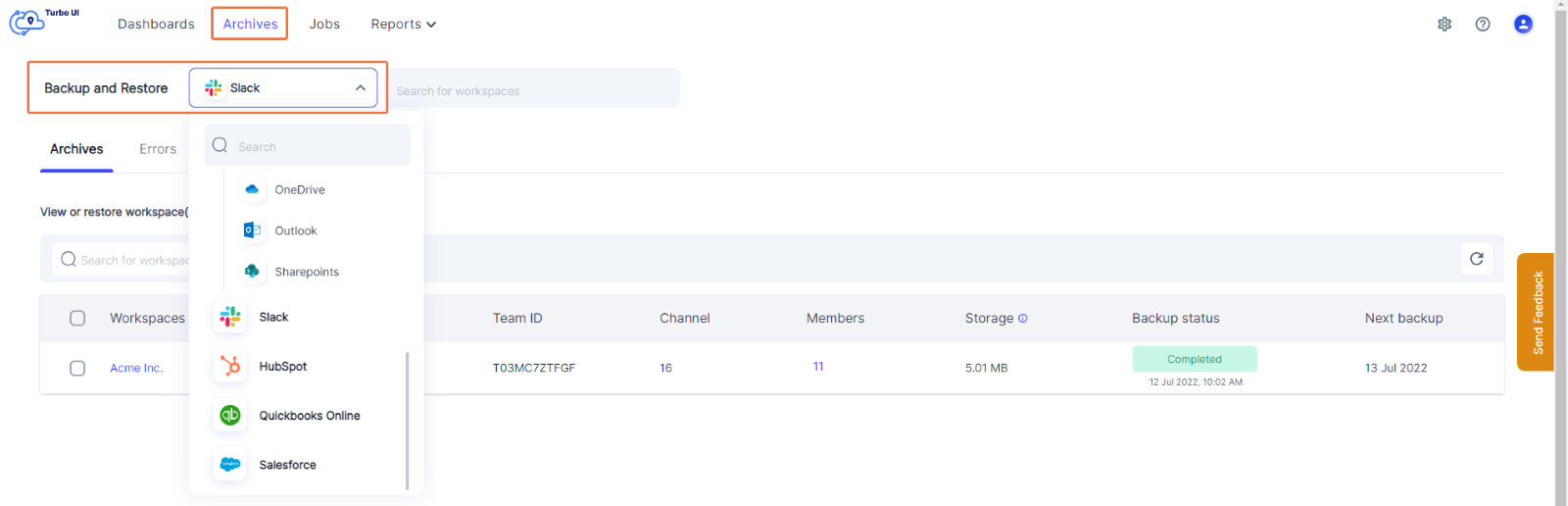
Step 3: Choose the Slack Workspace you want to export the files from.
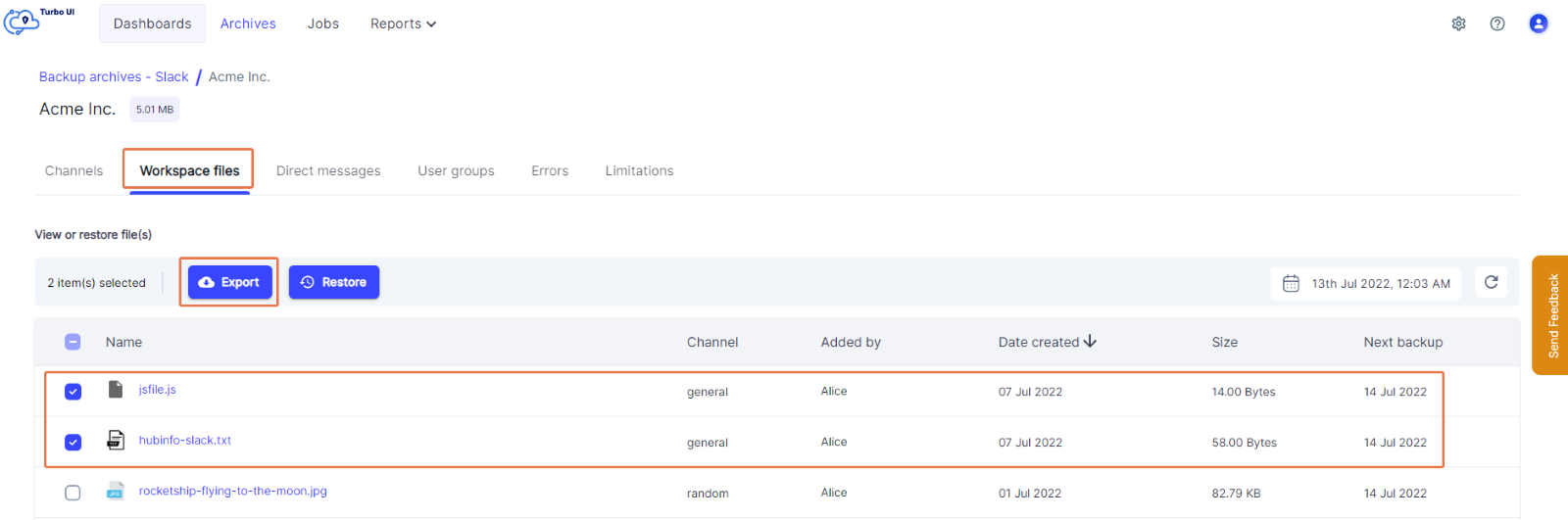
Step 4: Select “Workspace files” from the navigation bar on top.
Step 5: Choose the files you want to export by clicking the checkbox next to them (you can choose multiple files at once).
Step 6: Click “Export” from the tab on top.
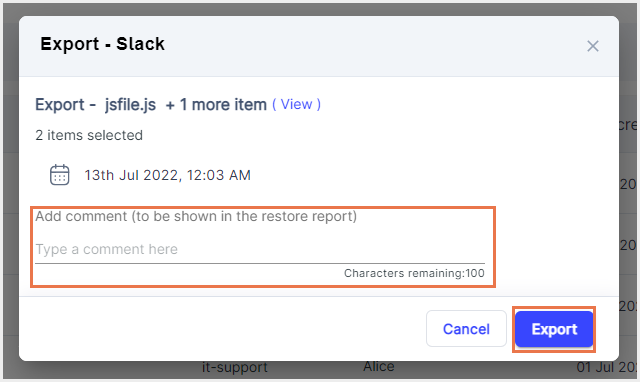
Step 7: Add any comments if needed and click “Export.”