![Untitled design (1)-Aug-01-2022-12-37-27-80-PM.png]](https://help.syscloud.com/hs-fs/hubfs/Untitled%20design%20(1)-Aug-01-2022-12-37-27-80-PM.png?height=40&name=Untitled%20design%20(1)-Aug-01-2022-12-37-27-80-PM.png)
Follow the steps to restore Box files
- Step 1: Log in to SysCloud application using your admin credentials.
Locate and select the files
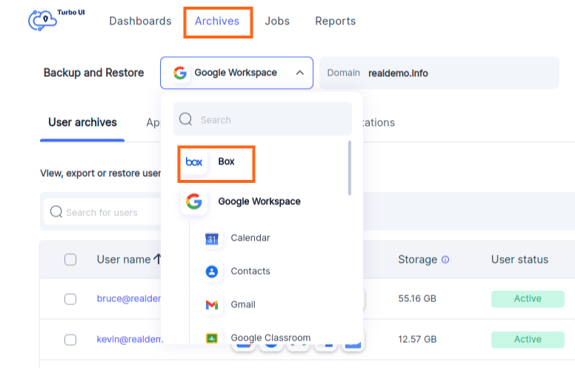
- Step 2: Click on Archives and select Box from the Backup and Restore drop down.
-
Step 3: Files are part of an user's backup archives. To locate a file, select the account > select the user and then navigate to the users' folders and files.
Tips
- Expand the folders in the left-panel to view all sub-folders.
- Use the search bar and filters to locate your files quickly.
- By default, you will see the latest backup snapshot. To view and restore older snapshots, you can select a date or date range from the snapshot selector.
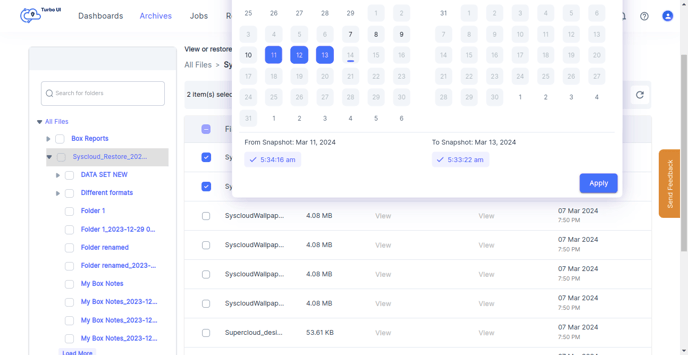
- Step 4: Select the check boxes to choose the files and click the Restore button. A restore popup will open up with advanced restore options.
.png?width=688&height=355&name=ScreenShot%20Tool%20-20240314014259%20(1).png)
Advanced restore options
- Step 5: Choose the user you want to restore the file(s) to. You can restore the file(s) to the owner or to a different user.
.png?width=688&height=355&name=ScreenShot%20Tool%20-20240315031643%20(1).png)
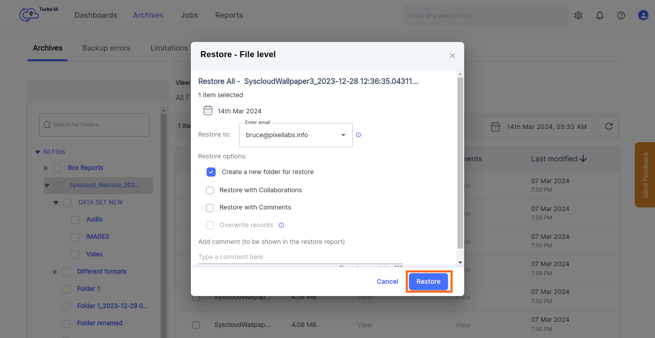
- Step 6: Choose the appropriate restore options, add comments on the restore for your reference(optional).
Restore options
- Check the Restore with Collaborations option to restore files with the sharing permissions intact.
- Check overwrite records to overwrite an existing file with the version you are restoring.
Check Create a new folder for restore to restore the file to a new folder.
If you do not check either options, the file will be restored to the original folder but as a new file. - Check Restore with Comments to restore any box comments attached to a file.
- Step 7: Finally, select the Restore button to begin the restore.
Track the restore progress
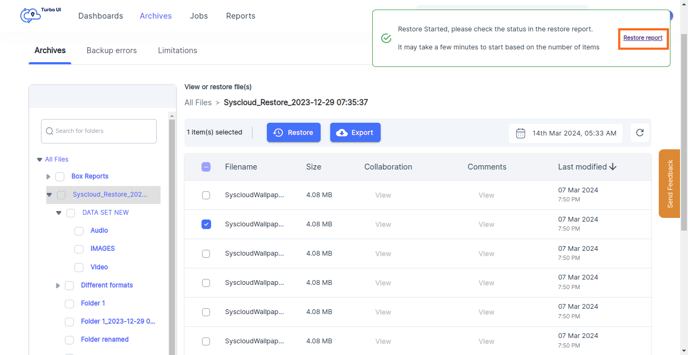
- Step 8: Click the Restore report button in the restore notification to view your restore progress.