![Untitled design (1)-Aug-01-2022-12-37-27-80-PM.png]](https://help.syscloud.com/hs-fs/hubfs/Untitled%20design%20(1)-Aug-01-2022-12-37-27-80-PM.png?height=40&name=Untitled%20design%20(1)-Aug-01-2022-12-37-27-80-PM.png)
Follow the steps below to restore the Google Calendar data from the SysCloud backup application:
Step 1: Log in to SysCloud using your admin credentials.
Step 2: Click on Archives and select Calendar from the Backup and Restore drop-down. Select the user account from the list by clicking the checkbox next to the account name and click on Restore. 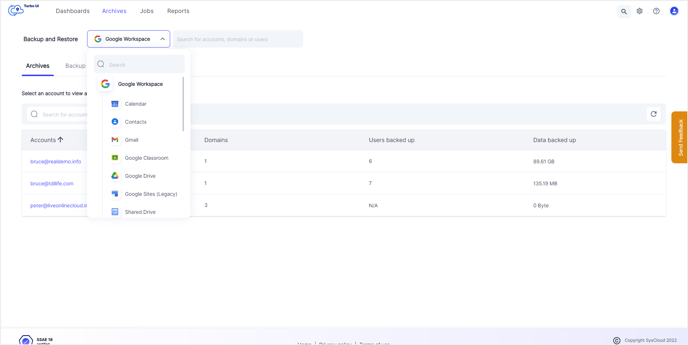
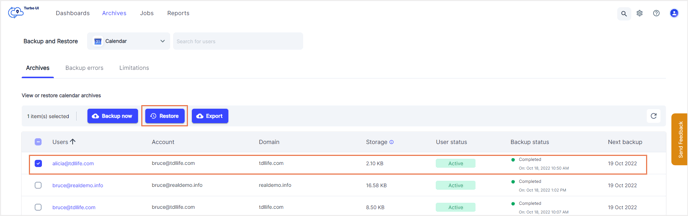
Note: You can also restore your Google Calendar data by navigating to the App Archives. Select Calendar in the app archive and then select a user account to restore the Calendar data by clicking the checkbox next to the username and click on Restore.
Step 3: In the restore pop-up box, select the snapshot date and time and select an account to restore the data. 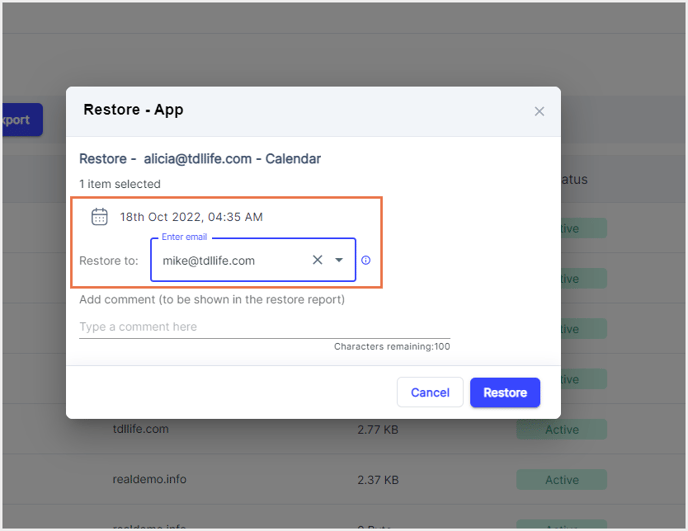
Note: By default, data is restored to the same account from which it was deleted. To perform a cross-user restore, you can select a different account of the same domain.
Step 4: Add comments to be shown in the Restore Report (optional) and click on Restore to confirm the restore. -2.png?width=688&name=Restore%20pop-up%20(1)-2.png)