![Untitled design (1)-Aug-01-2022-12-37-27-80-PM.png]](https://help.syscloud.com/hs-fs/hubfs/Untitled%20design%20(1)-Aug-01-2022-12-37-27-80-PM.png?height=40&name=Untitled%20design%20(1)-Aug-01-2022-12-37-27-80-PM.png)
For Legacy UI users, read How do I view the backup archive for my Shared Drive application (Legacy UI)?
Follow the steps below to view the contents of Shared Drive backup archive (For Turbo UI users only):
Steps
Step 1: Log in to the SysCloud backup application using your credentials.
Step 2: Go to Archives > Google Workspace > Shared Drive.
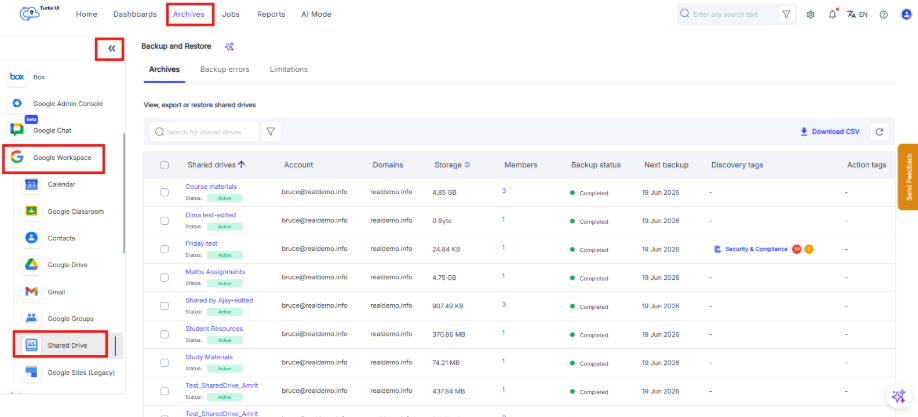
Step 3: Select the shared drive you want to view.
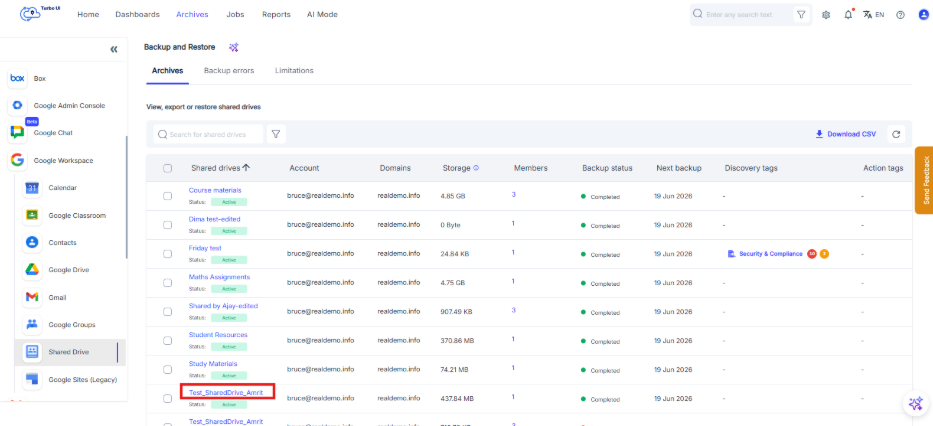
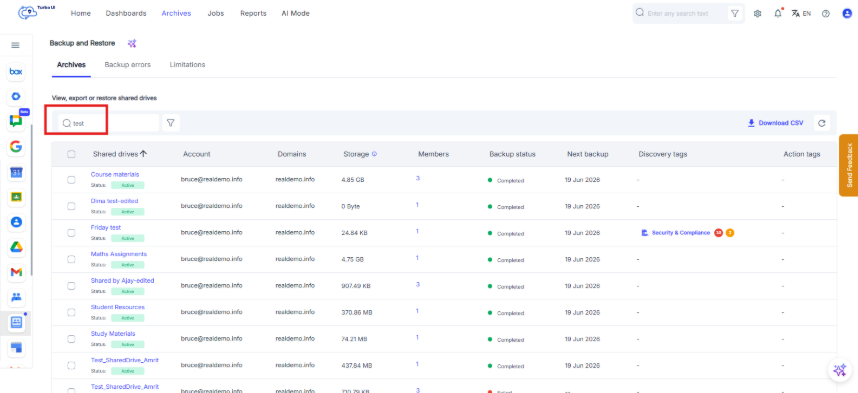
Step 4: In case the list of shared drive is long, following ways can be used for faster search:
- Search bar: Type the name of the shared drive and press Enter
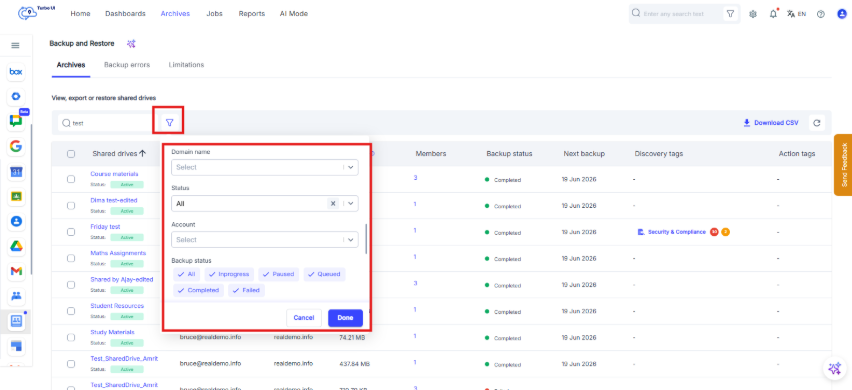
- Use Filters to filter the drives based on domain name, status, account, etc.
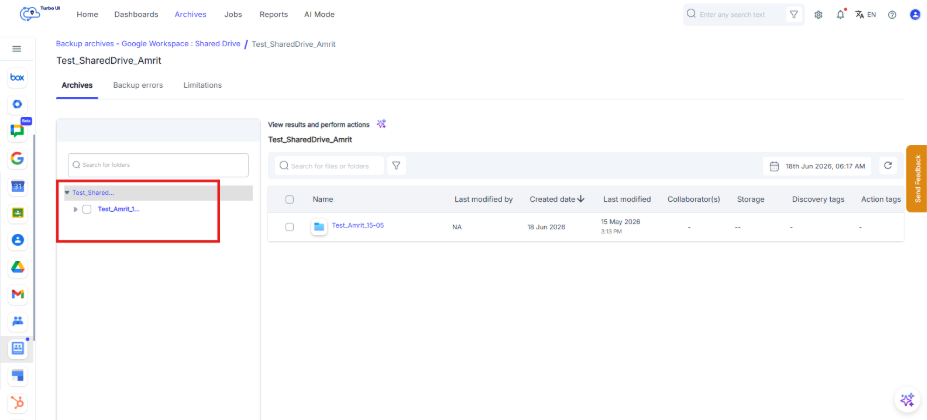
Step 5: Browse the backed-up folders from the left-side folder navigation panel in the shared drive archive.
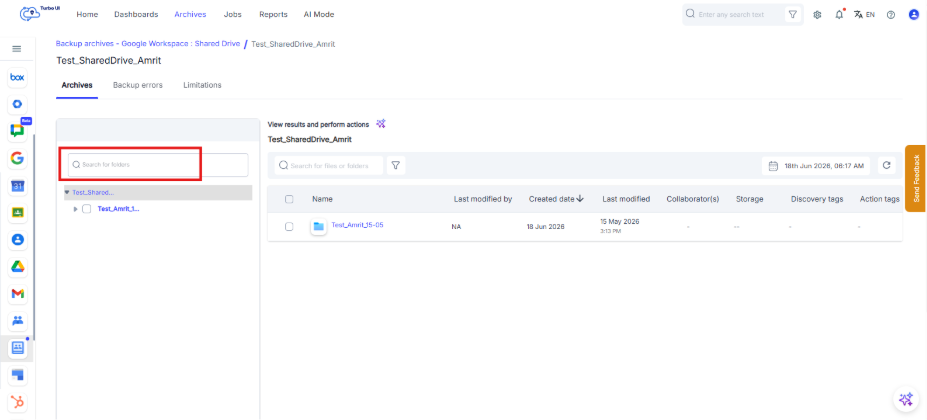
Step 6: Use the search box to search for folders from the left navigation panel.
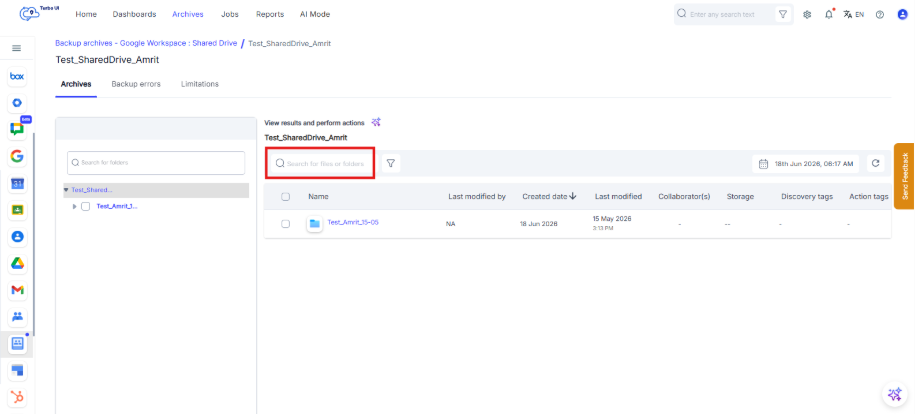
Step 7: The search bar in the main view can be also used to search for folders and files within a folder selected from the left navigation panel.
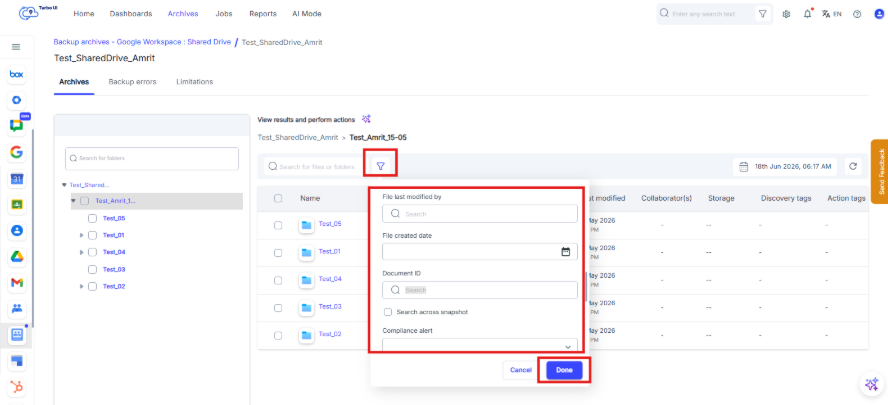
Step 8: Click the filter icon to narrow down the shared drive archive view.
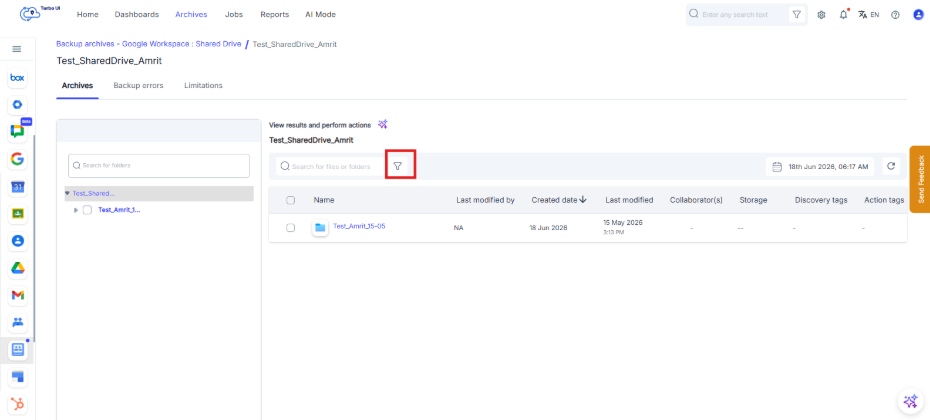
Step 9: Click on filter icon to get the filter options available to narrow down the search:
- File Last modified date
- File Created date
- All the add-ons’ filters like mentioned in above sections
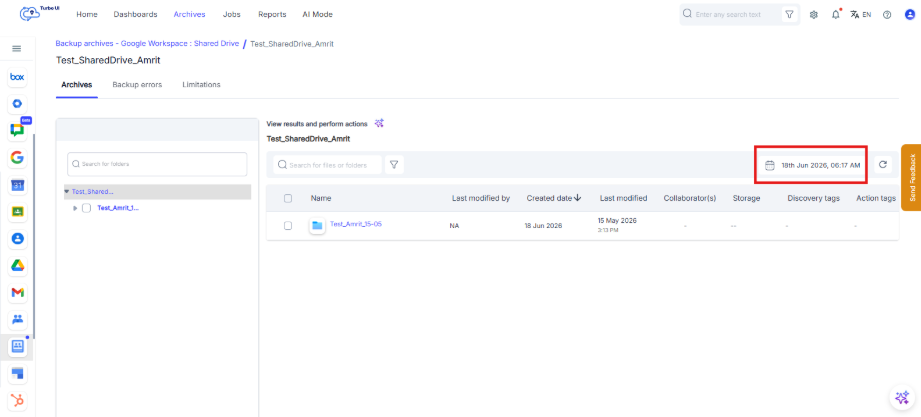
Step 10: The Snapshot Date on the top right shows that archive view currently appearing on the screen is of which date. To view files and folders from a specific backup point in time or for a range of dates, Click on the above snapshot date.
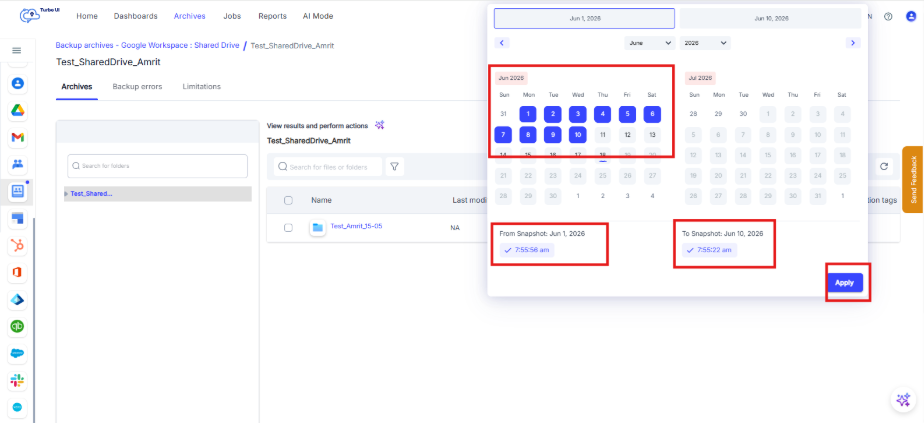
Step 11: To compare the archive view for a range of dates, From & To can be selected. For a specific point in time, both From & To dates should be same. Click on Apply.
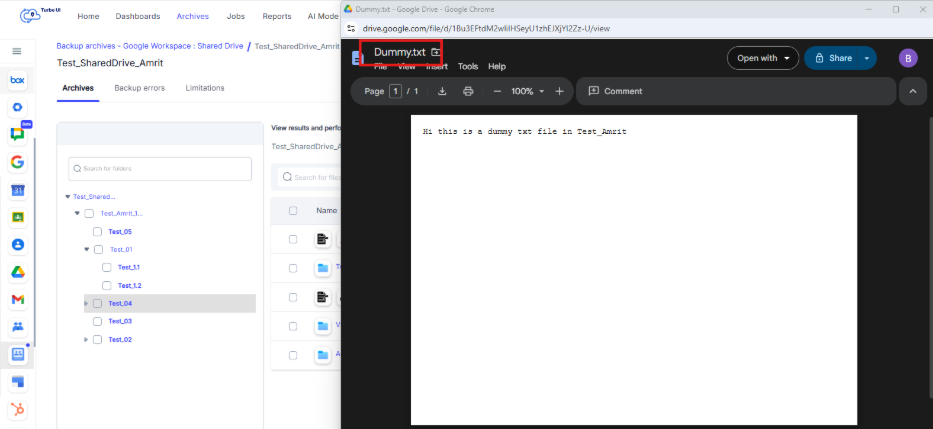
Step 12: Click a file or folder name to open or preview the item.
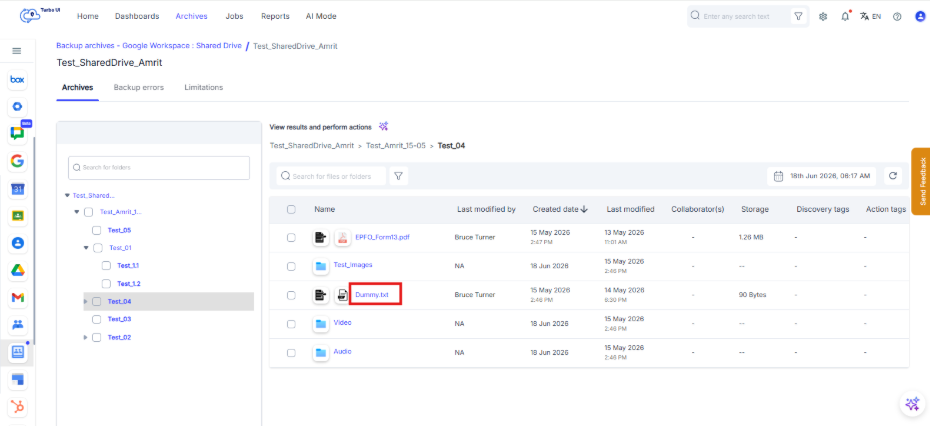
The file opens in a separate window for preview.
Shared Drive is available as a separate Google Workspace app in SysCloud. Shared Drive files are not listed under a user’s Google Drive > My Drive archive.