![Untitled design (1)-Aug-01-2022-12-37-27-80-PM.png]](https://help.syscloud.com/hs-fs/hubfs/Untitled%20design%20(1)-Aug-01-2022-12-37-27-80-PM.png?height=40&name=Untitled%20design%20(1)-Aug-01-2022-12-37-27-80-PM.png)
There are 2 ways how you can access to archives of Gmail:
From Gmail App | From user level
Follow the steps below to restore Gmail data at the application level:
Step 1: Log in to SysCloud using your admin credentials.
Step 2: Click on “Archives” and select Gmail under Google Workspace.
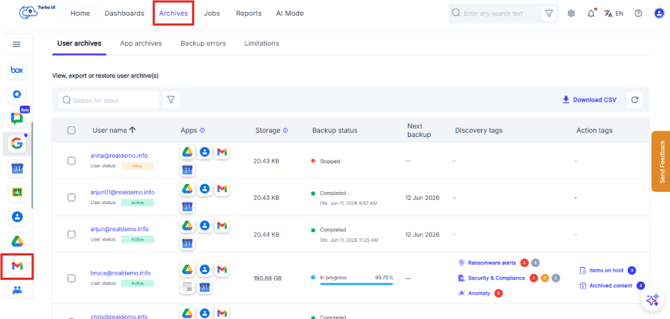
Step 3: Select the user account from the list by clicking the checkbox next to the account name and click on Restore.
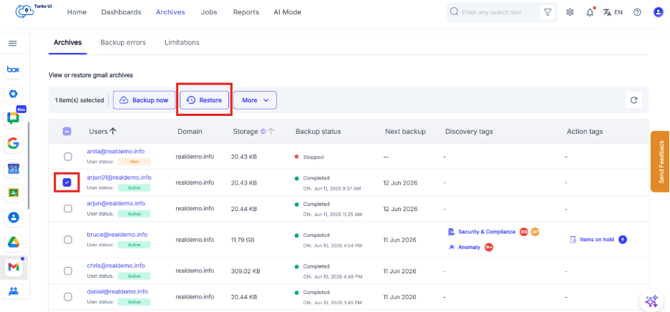
Step 4: In the restore pop-up box, select the snapshot date and time For point-in-time restore, click the snapshot date field and select the required date for both the From and To dates. Click Apply. If you select a date range, SysCloud restores all versions available within.
that range, including multiple versions of the same file if it was modified during that period. and select an account to restore the data.
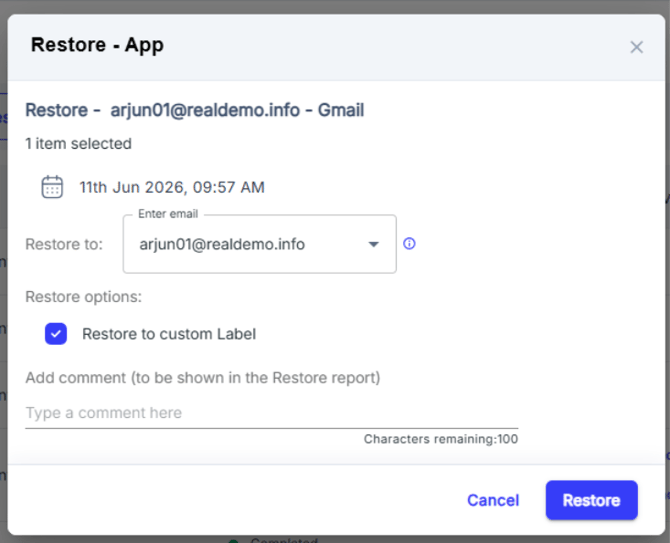
By default, data is restored to the same account from which it was deleted. To perform a cross-user restore, you can select a different account of the same domain. Refer to this article for step by step instructions on how to initiate cross-user restore.
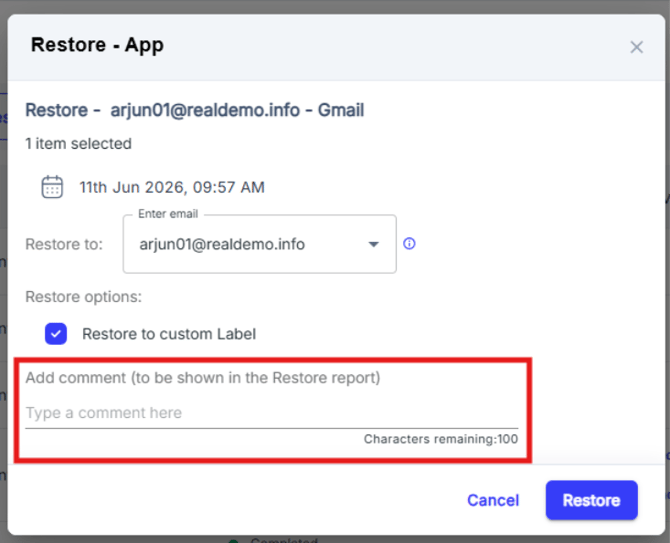
Step 5: Click on the checkbox next to "Restore to custom label” to restore deleted emails to a custom label. If this option is unchecked, data will be restored to its original location.
When you choose the “Restore to custom label” option, the application will create a default “Restored on (dd-mm-yy)” label in your inbox and restore emails under it.
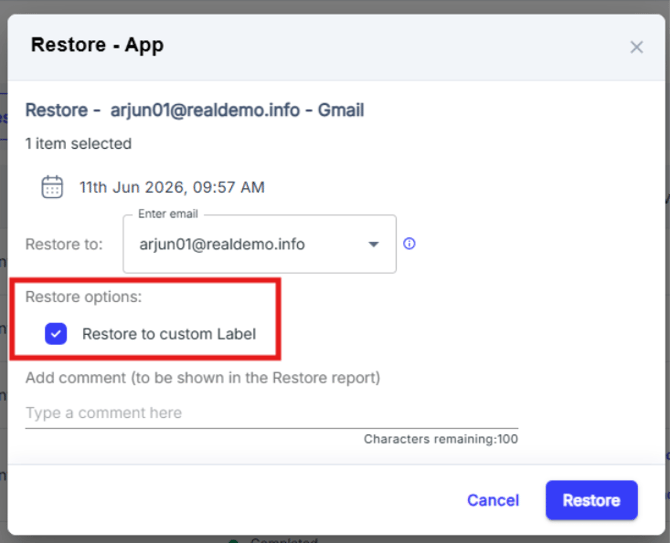
Step 6: Add comments to be shown in the Restore Report (optional) and click on Restore to confirm the restore.
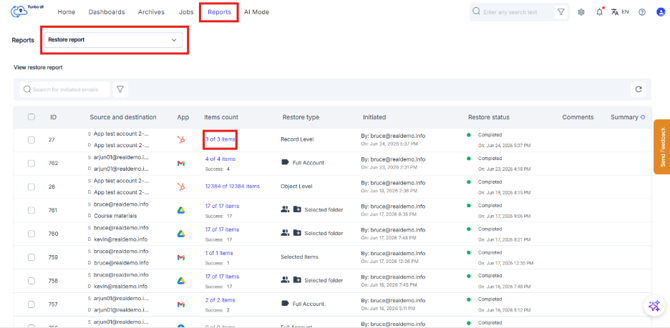
Step 7: You can monitor the restore status from Reports > Restore Reports.
Follow the below steps to initiate restore from User level:
Step 1: Log in to SysCloud using your admin credentials.
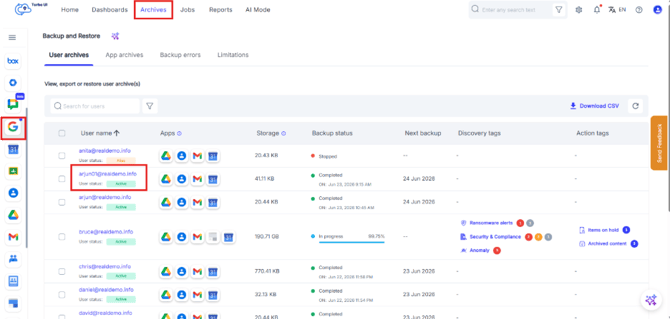
Step 2: Click Archives, select Google Workspace, and then choose the user whose data you want to restore to access their archive.
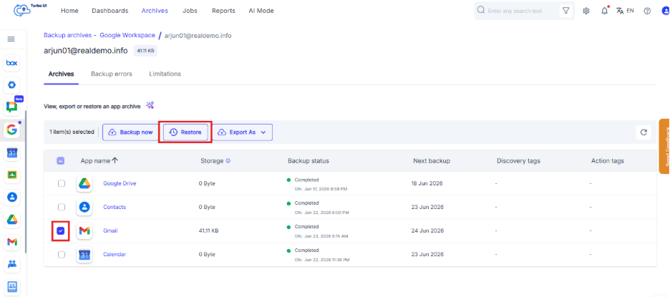
Step 3: From the list of available apps, select the checkbox next to Gmail and click on Restore.
Step 4: In the restore pop-up window, select the "Restore to custom label" checkbox if you want to restore deleted emails to a custom Gmail label. If this option is left unchecked, the emails will be restored to their original location. Optionally, add comments that will be displayed in the Restore Report, and then click "Restore" to confirm the restore.
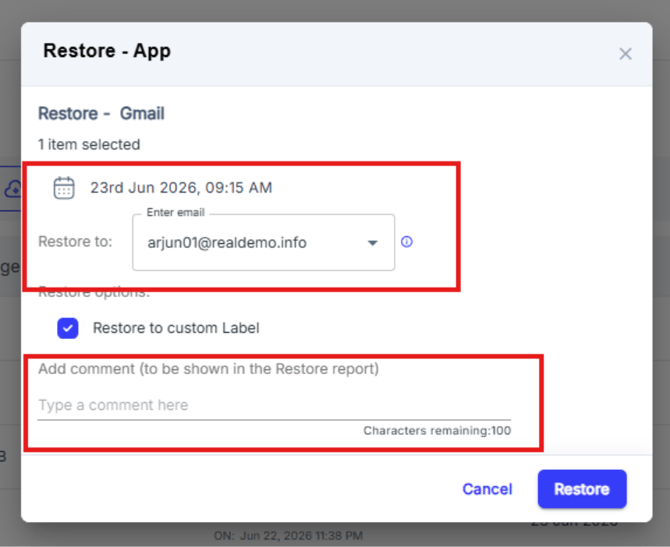
By default, data is restored to the same account from which it was deleted. To perform a cross-user restore, you can select a different account of the same domain. Refer to this article for step by step instructions on how to initiate cross-user restore.